
Lab 3: Leverage Anypoint MQ to broadcast Order Fulfillment updates via Notification API
Overview
When the Order Fulfillment API is invoked, we want to broadcast a notification event across multiple heterogeneous channels exposed as a System API. We will use Anypoint’s built-in Message Queueing system to provide the necessary one-way, publish and subscribe capabilities to enable our notification broadcast. Two additional flows will be created, each of which leveraging pre-built Notification APIs from Exchange to rapidly construct our Notification flows.
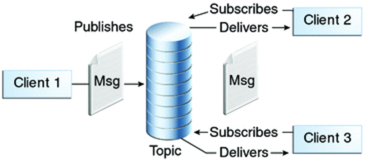
The implementation will consist of a few steps:
-
Configure a publish and subscribe messaging pattern using Anypoints cloud messaging service: Anypoint MQ.
-
Extend the Order Fulfillment API flow to publish a single Send Notification message to AnyPoint MQ.
-
Leverage Exchange 2.0 to reuse Gmail/Twitter and Slack Connectors for creation of two Notification subscribers.
-
Use DataWeave to manage data transformations across Notification API calls.
-
Run and test the Mule app containing the Process API from Anypoint Studio.
Step 1: Configure Anypoint MQ
To get started, let’s configure Anypoint MQ and the underlying Queues or Destinations we’ll use to construct our publish and messaging pattern. By using a publish and subscribe pattern for this interaction, we can broadcast our Notification to many subscribers, in our case: Slack and Gmail/Twitter social channels.
-
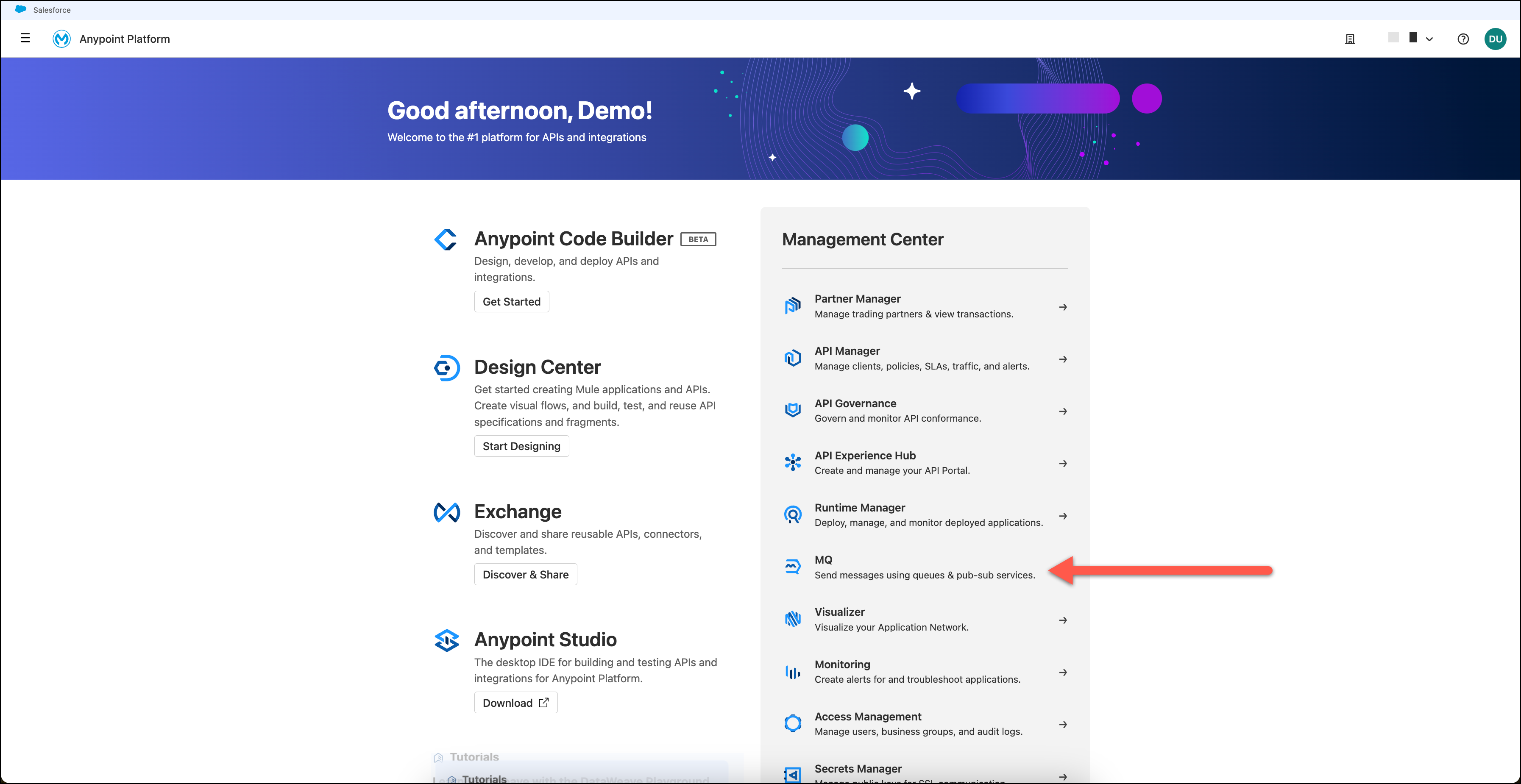
Let’s go ahead and open sign-in to Anypoint Platform, selecting MQ
-
Next let’s create the necessary Queue Destinations that will support our publish and subscribe notification pattern.
-
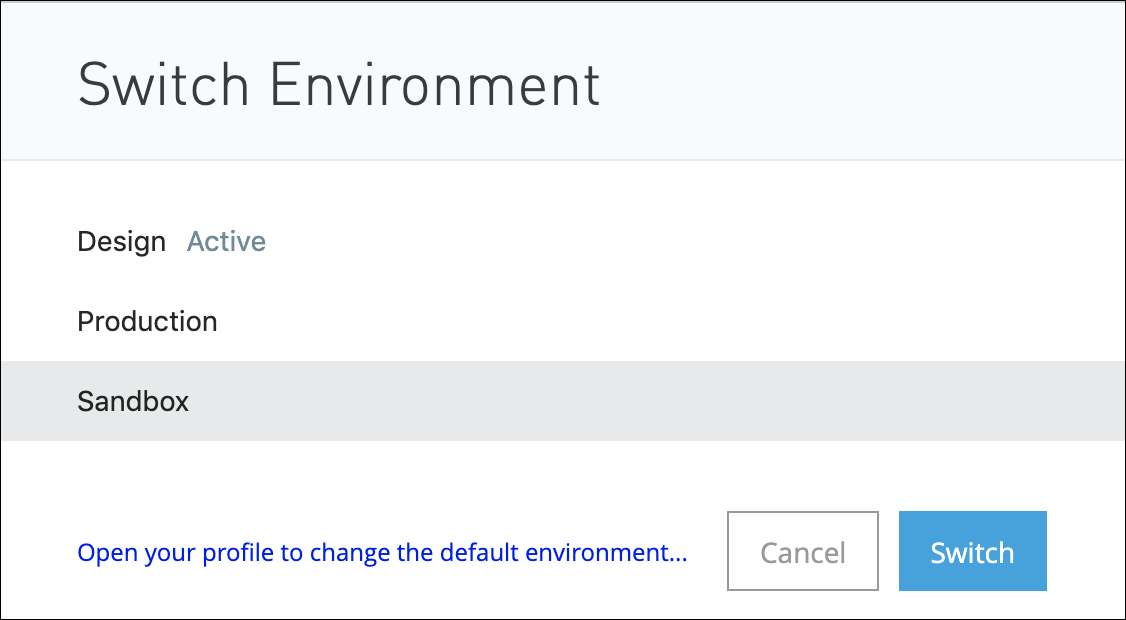
Select Sandbox environment
-
Click the
 button in the right upper hand corner, then Select Queue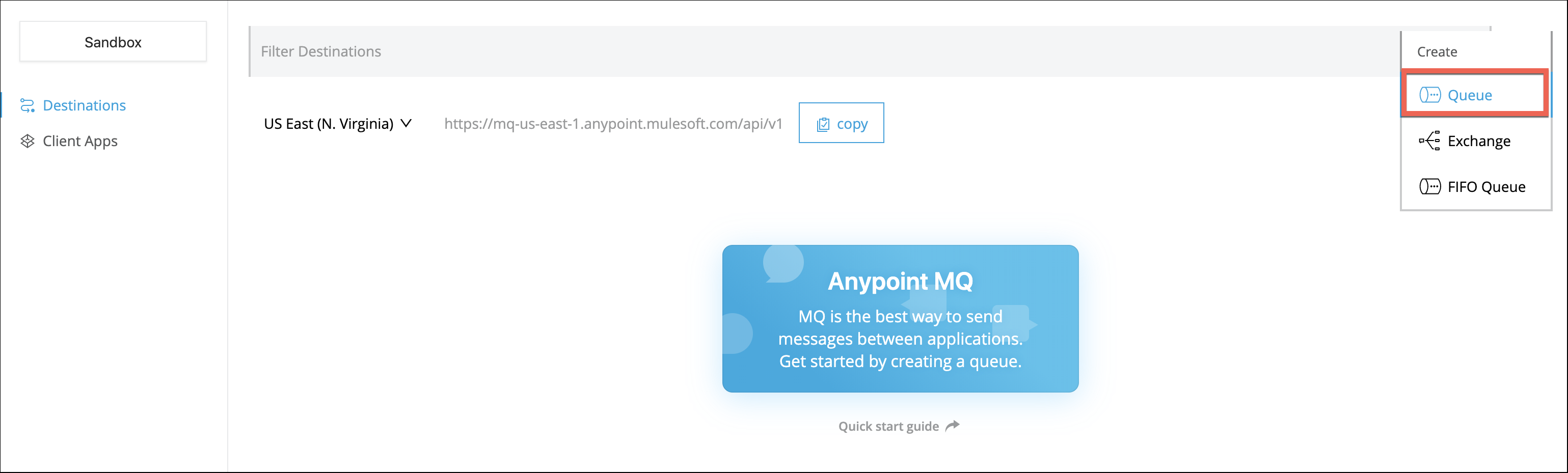
-
Let’s give our first Queue the ID <username>-order-user-notification-queue
-
Accept the default values for all other fields, choose Create Queue
-
Create a second Queue, giving it the ID <username>-order-slack-notification-queue
-
Accept the default values for all other fields, choose Create Queue
Your Queue definitions should resemble this illustration:

-
Next we need to configure an AnypointMQ Exchange to enable the sending and receiving of messages to our recently defined Queues.
-
Click the
button in the right upper hand corner, then Select Exchange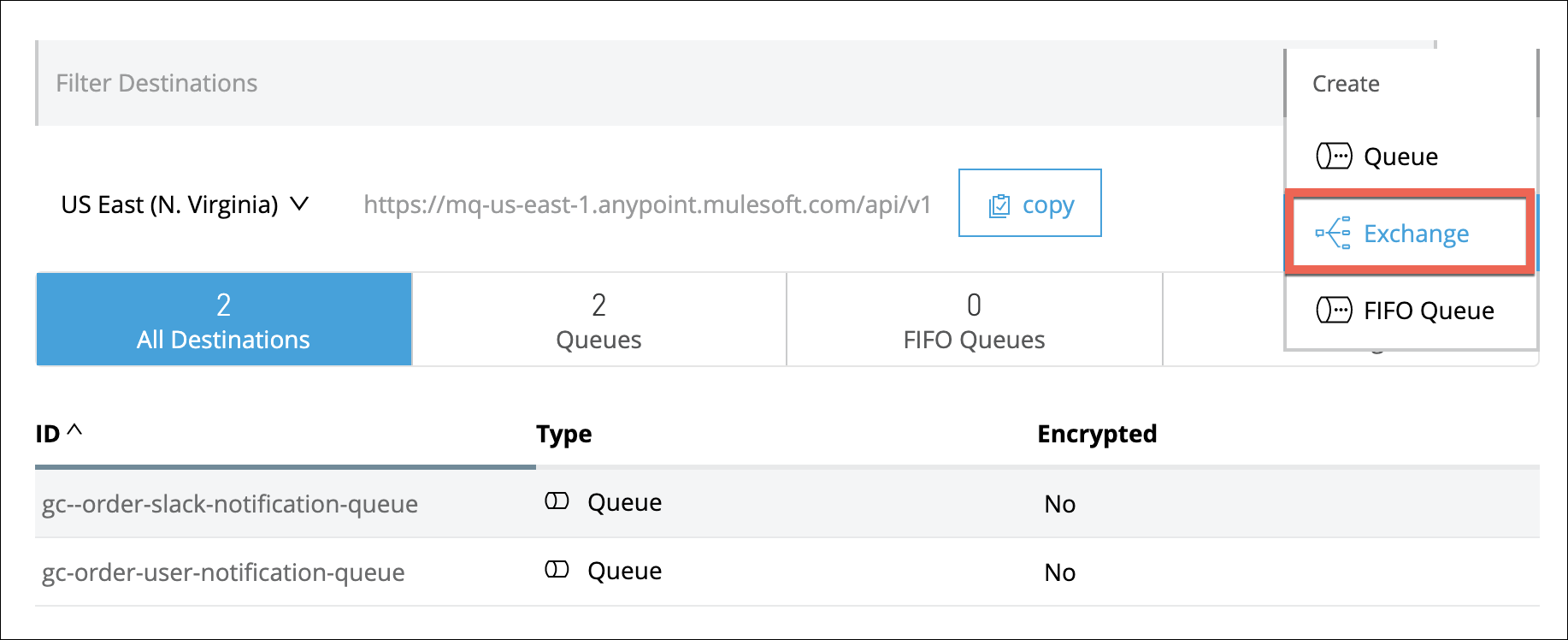
-
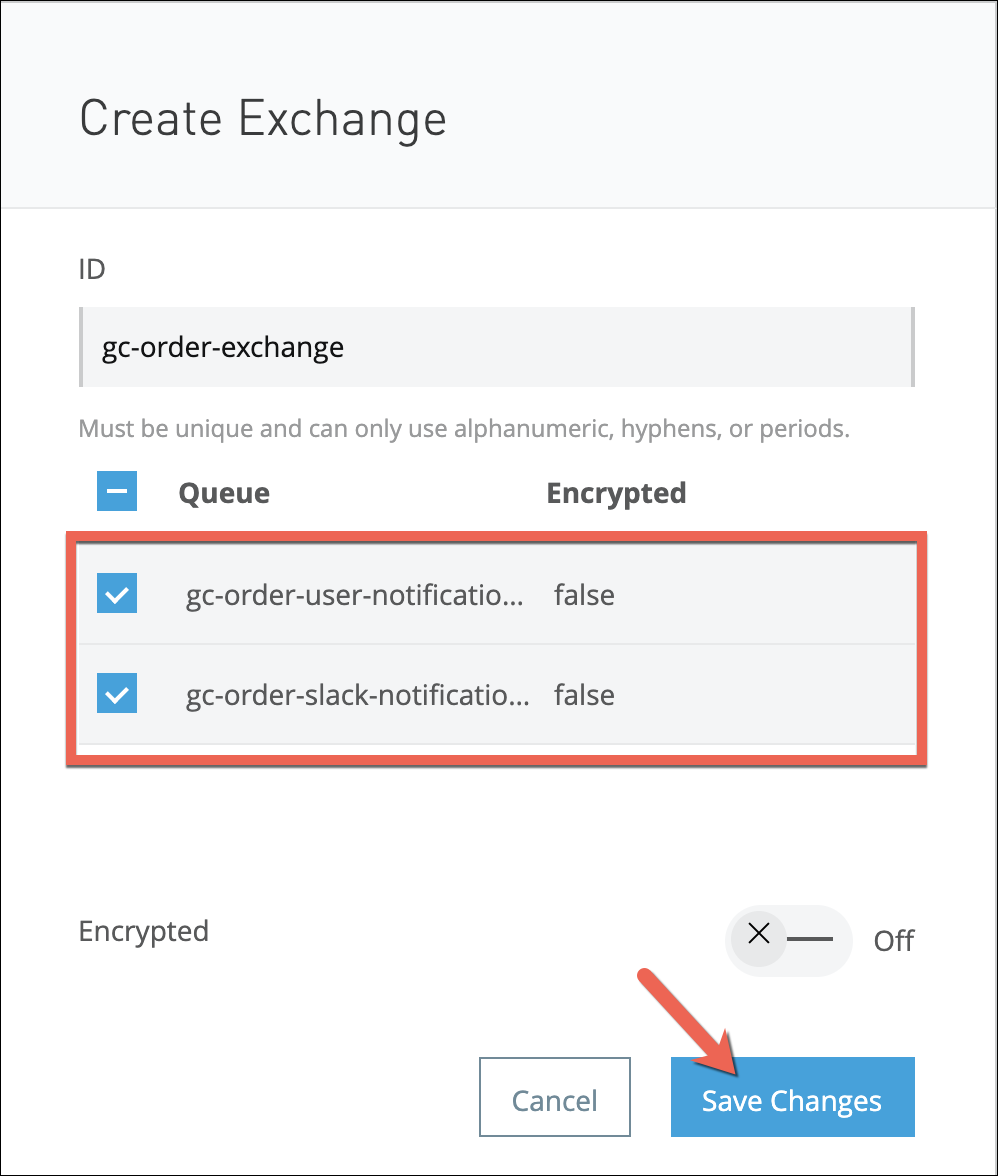
Let’s give our exchange the ID <username>-order-exchange, followed by selecting each of the two Queues we created in the last step.
-
Choose Save Changes
-
The final Anypoint MQ configuration is to create a Client App. By configuring a Client App, we can securely register an application with the Anypoint MQ host.
-
Select the Client Apps link in the left side nav bar, followed by the + in the upper right hand corner of the page.

-
Give the application a name, let’s call it <username>-order-notifications
-
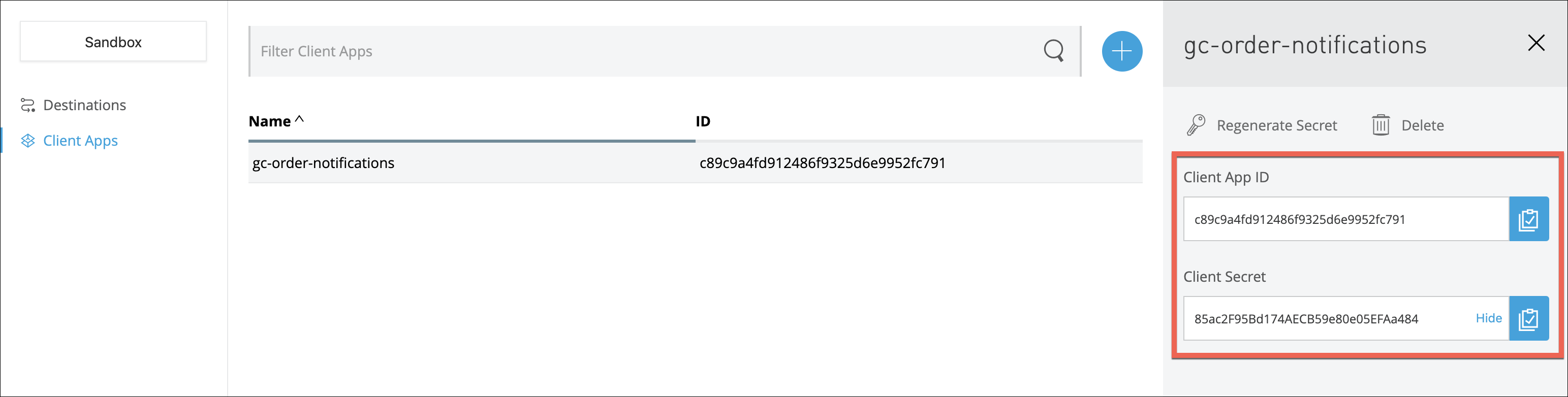
Choose Save Changes and wait a few seconds for the screen to refresh, showing the newly created client application registration. Once the application is registered successfully, it will be displayed with a Client ID as well as a Client Secret.
-
Please take note of the ID and Secret, as they will be used in future steps within this lab.
Step 2: Extend Process API to publish Notification events to Anypoint MQ
In this step we want to create a new branch in the Scatter-Gather and transform the message to prepare it for the successful asynchronous, invocation of the Notification API using Anypoint MQ.
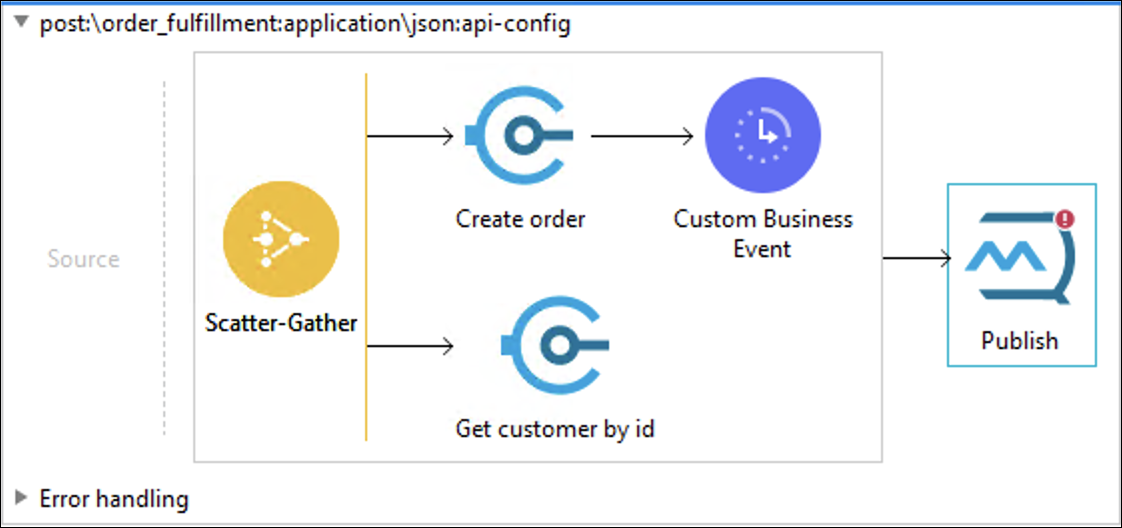
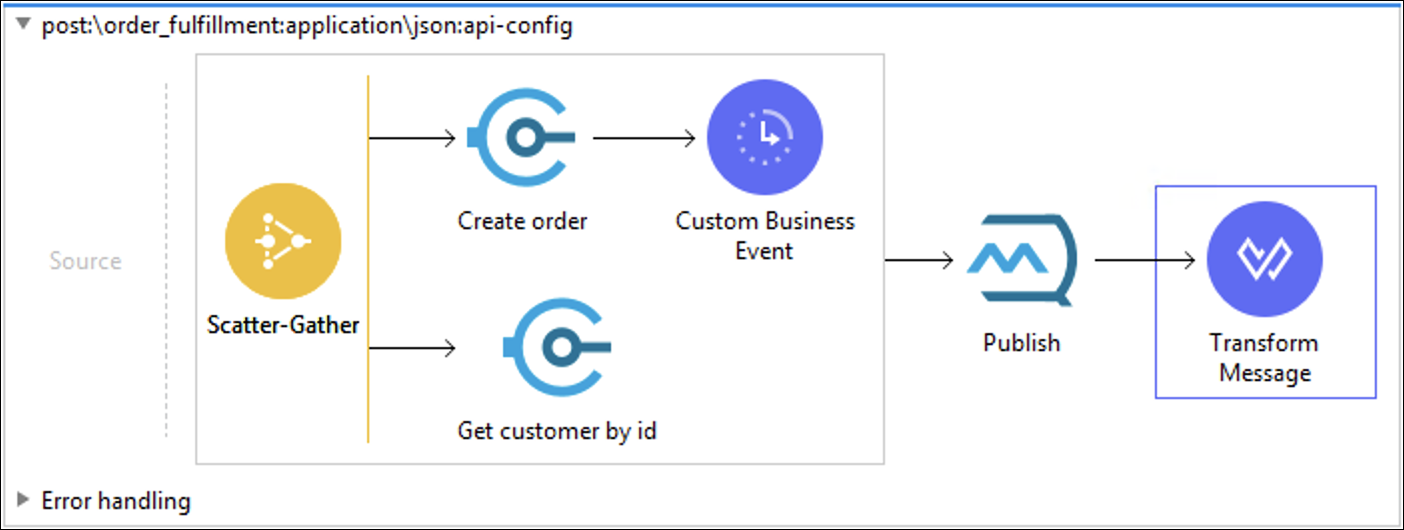
Before we begin, we want to make sure that our Order Fulfillment flow reflects the below illustration:
We are going to extend the flow after the Scatter-Gather and will enable us to properly mediate a Notification message and publish it to AnyPoint MQ.
The next step will be to create an example of the message that we are going to send through the exchange queue.
-
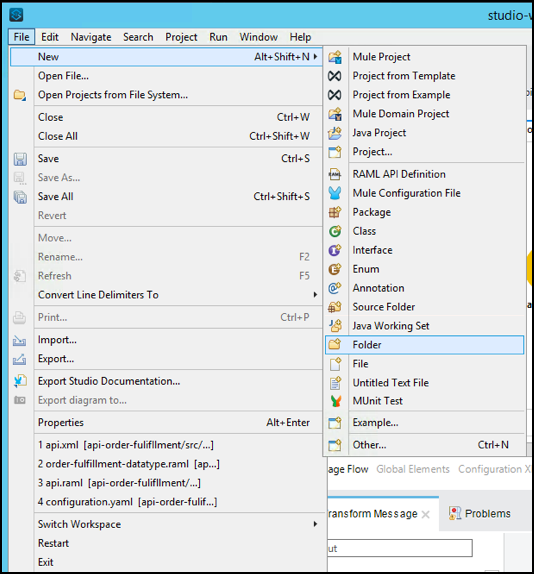
Go to the folder src/test/resources and press right button.
-
Select New → Folder
-
Complete with the name
examplesin the Folder name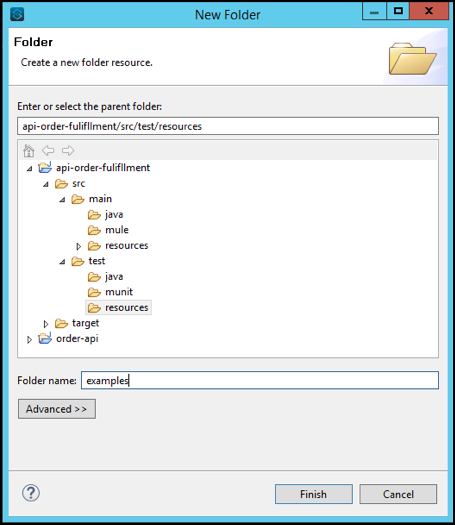
-
On src/test/resources/examples create a new File called
publish-message-example.json -
Copy and paste the following text:
{ "order_id":"1", "customer_data":{ "id": "b4285d5f-69c1-40fc-97b3-d112a6366b68", "email": "test_email123@example.com", "name": "Mike Prowl", "phone": "1-(951)768-8479", "shippingAddress": { "address1": null, "city": "Houston", "country": "USA", "postalCode": "77045", "state": "Texas" }, "billingAddress": { "address1": null, "city": "Riverside", "country": "USA", "postalCode": "92513", "state": "California" } }, "products":[ { "id": 3, "productName": "Hoodie", "quantity": 1 }, { "id": 5, "productName": "Mug", "quantity": 2 } ] } -
Save and Close the example file.
-
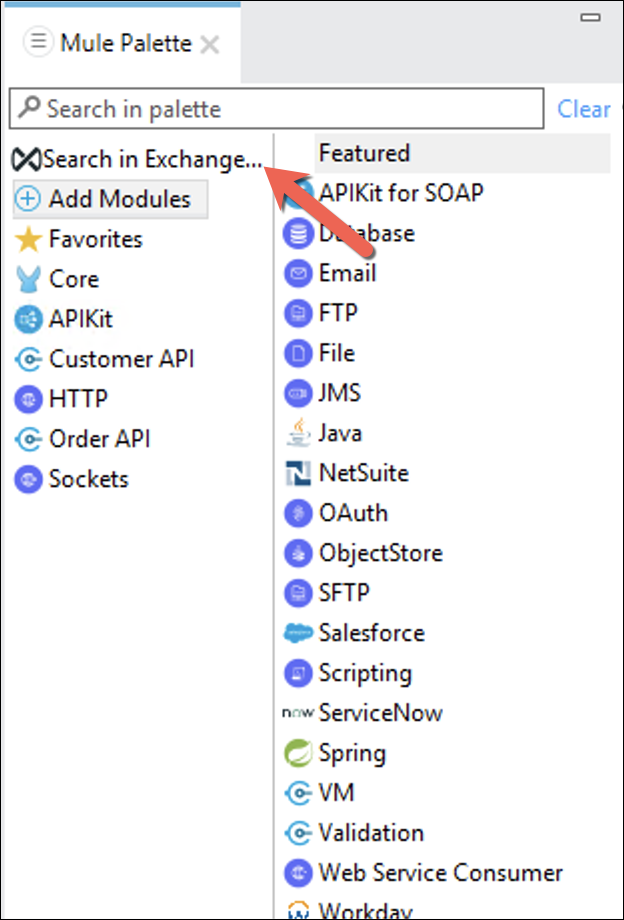
Now, add the Anypoint MQ Component to the palette.
To import the Anypoint MQ Connector, you need to go to Exchange.
-
Go to the palette and press Search in Exchange
-
In the search box enter
Anypoint -
Select the Anypoint MQ Connector
-
Press the Add> button.
You should see the connector on the Selected modules pannel
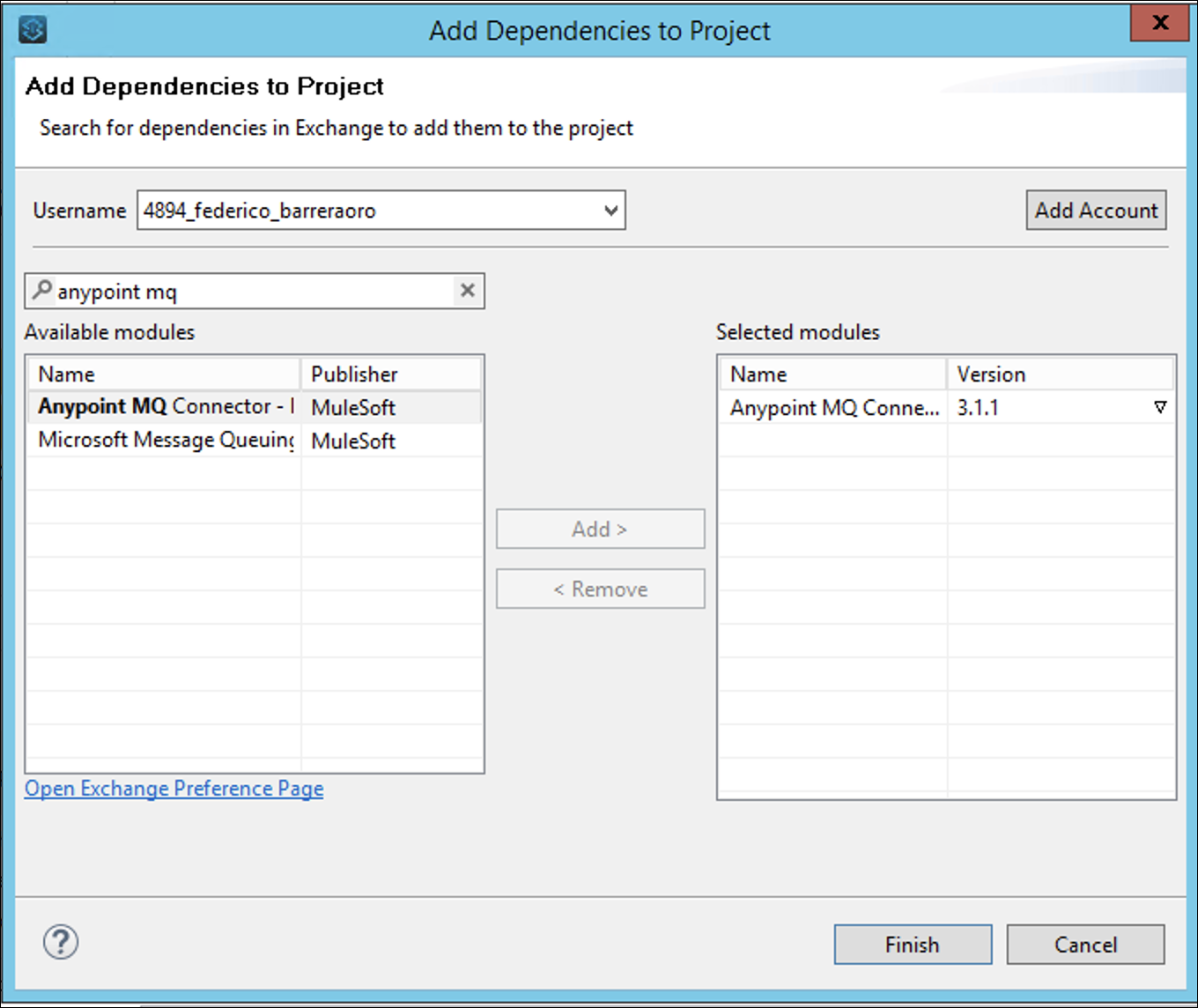
Be sure it’s version 3.1.2 or later.
-
Press Finish
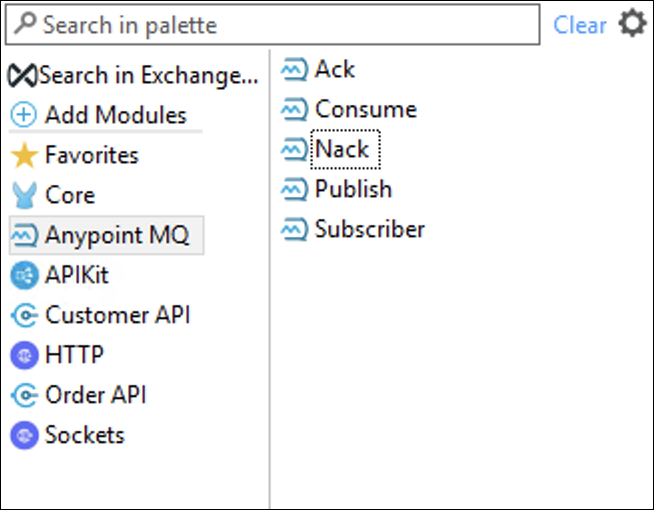
You should see the Anypoint Connector on the Connector Palette.
-
Remove the last Transform Message component.
-
In the Anypoint MQ Palette, Drag and Drop the Publish icon after the Scatter Gather component.
-
Click on the Publish Icon
-
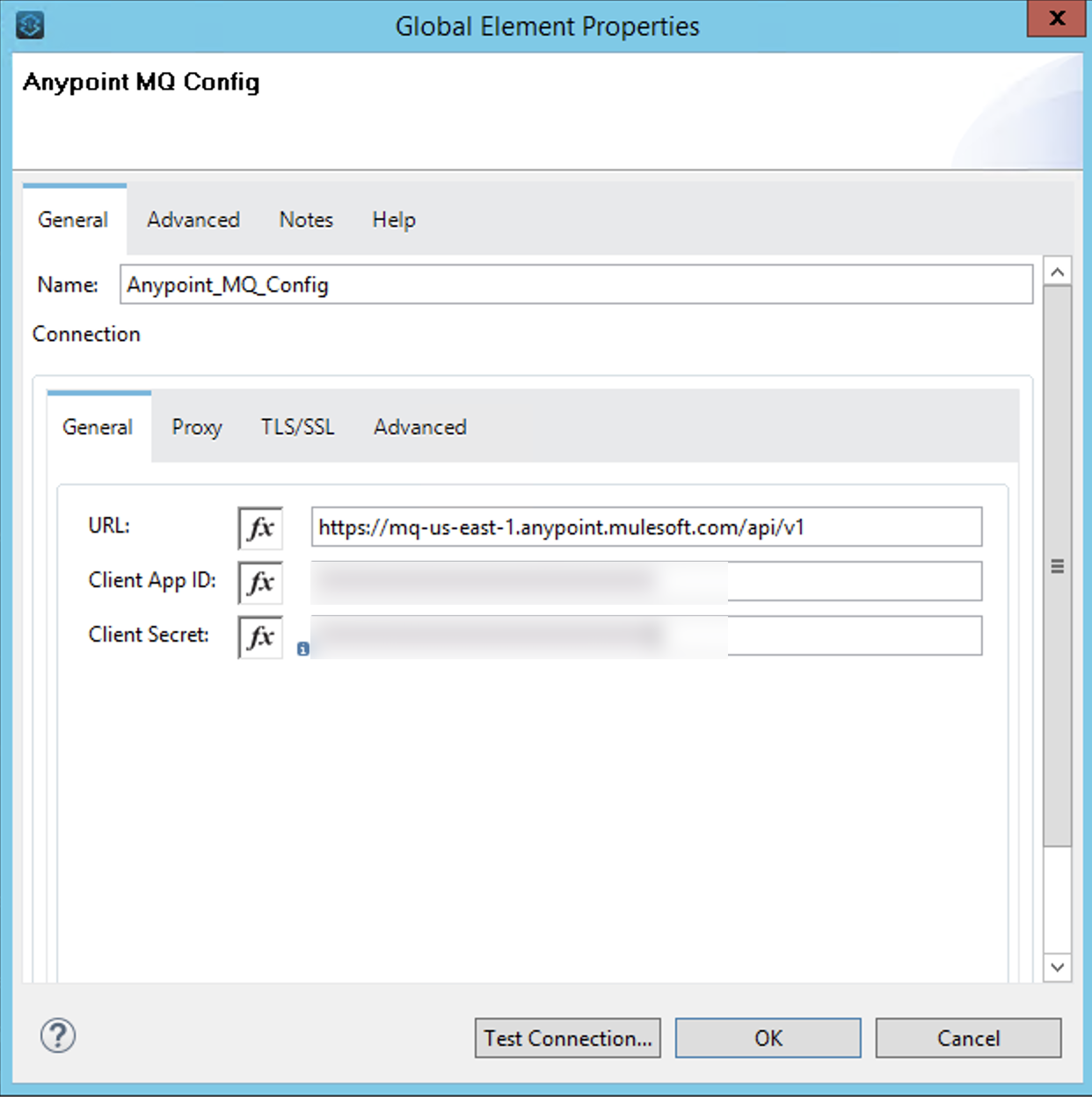
Configure the Anypoint MQ client by creating a new Connector Configuration.
Copy and paste in your Client ID and Client Secret from the MQ Client created on Step 1.
-
Press OK
-
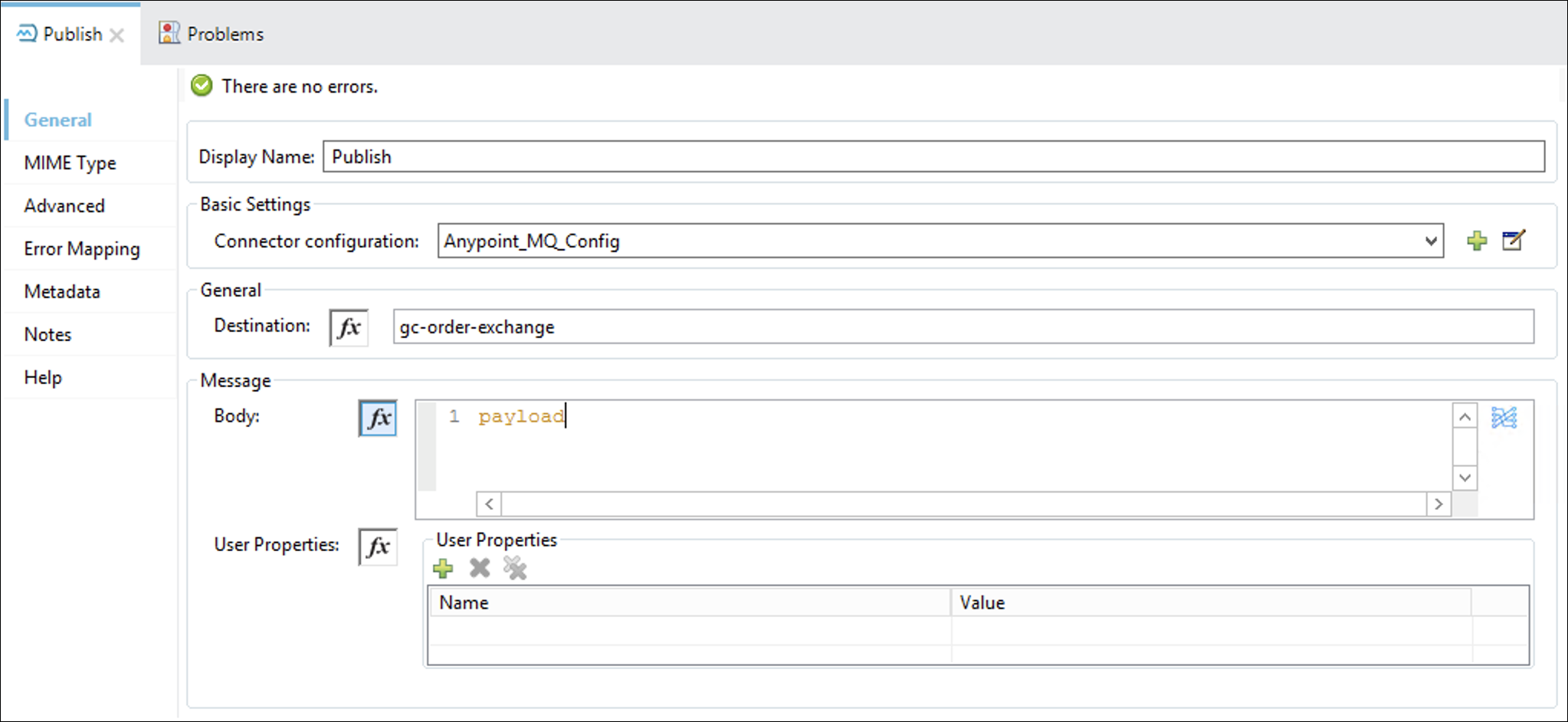
Under the General section
Complete with the following Data:
-
Destination : <username>-order-exchange
-
Body: #[payload]
-
Properties: None
+ Now we are going to Map the message that we are going to send through the Anypoint MQ.
-
-
Click

-
Click Define metadata link
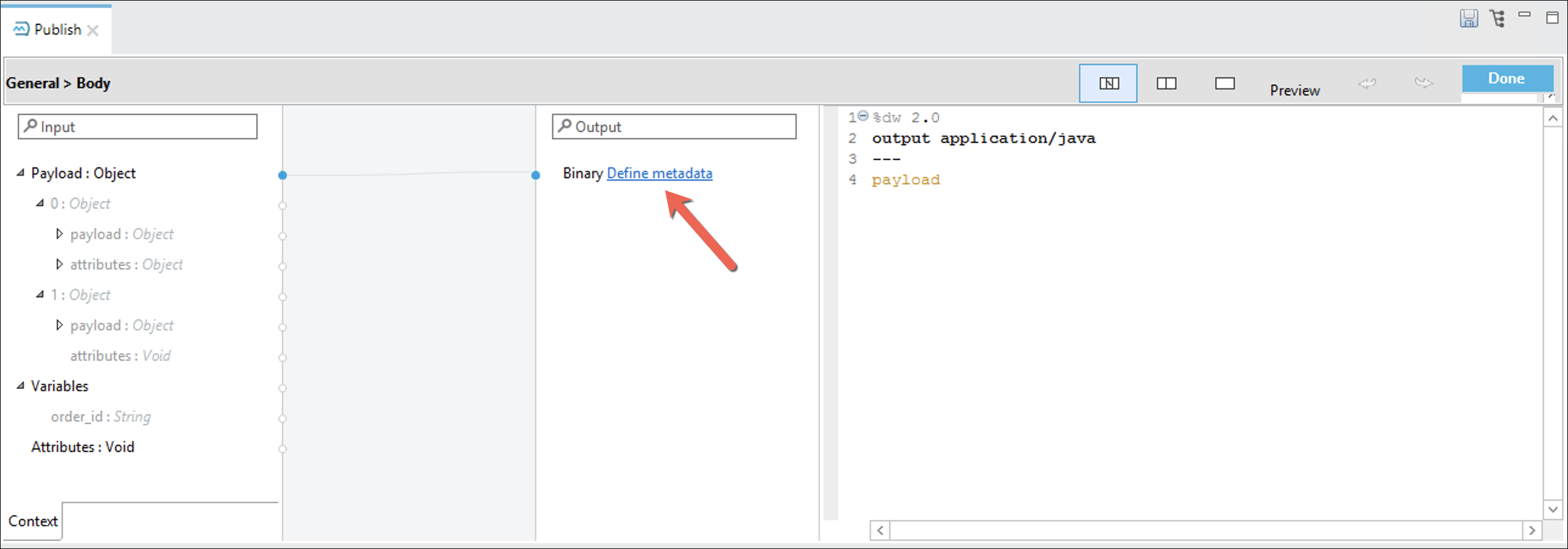
A new window will open
-
Press Add button to create a new data type.
-
Complete with the name
publish_message_exampleand press create type -
Select JSON in the type drop down list
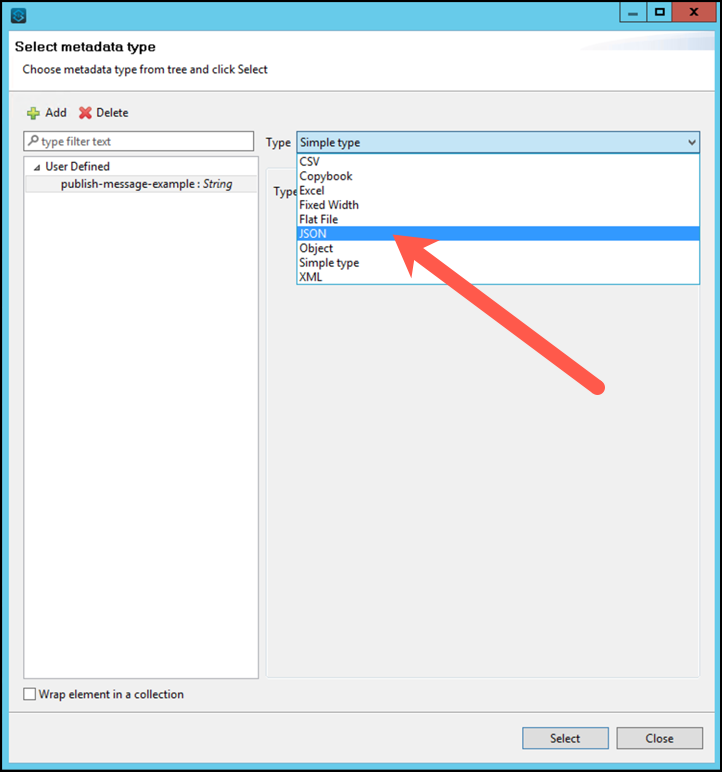
New fields to be completed will appear.
-
Select
examplefrom the drop down and writeexamples/publish-message-example.jsonas the path.You also can navigate to the file.
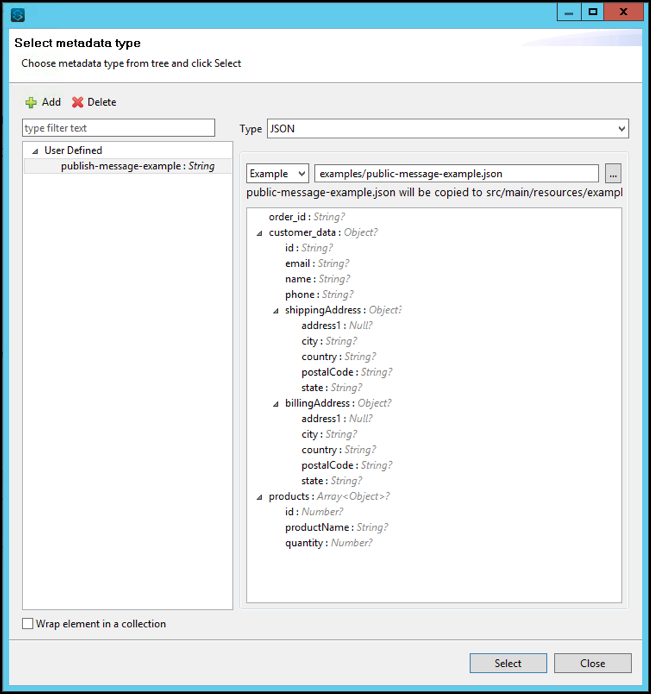
-
Press Select
-
Save the project
Now that the Metadata was set, we can continue to map the Body.
-
Select publish-message-example from the User Defined window.
-
Press Select when finished.
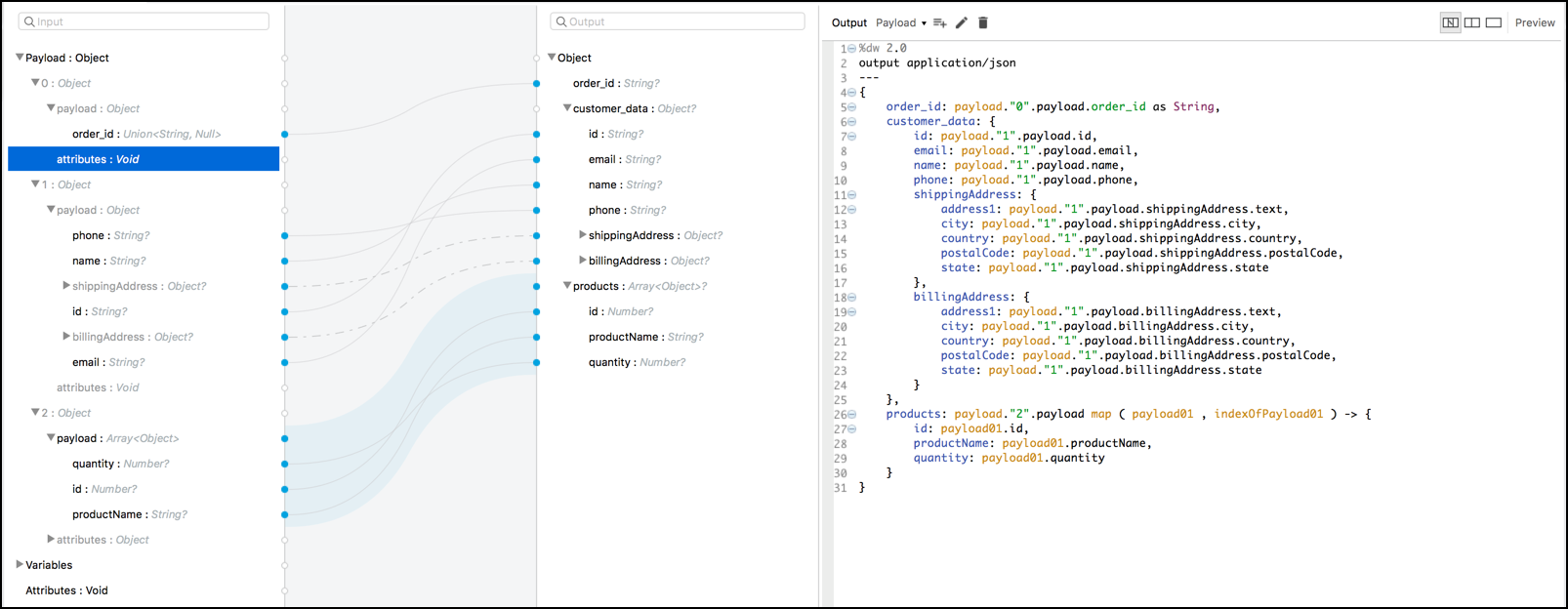
Now that we can see that the output datasense . We need to map a new message to be sent to the Publish component.
-
Replace the actual transformation with this one:
%dw 2.0
output application/json
---
{
	order_id: vars.order_id as Number,
	customer_data: {
		id: payload."1".payload.id,
		email: payload."1".payload.email,
		name: payload."1".payload.name,
		phone: payload."1".payload.phone,
		shippingAddress: {
			address1: payload."1".payload.shippingAddress.text,
			city: payload."1".payload.shippingAddress.city,
			country: payload."1".payload.shippingAddress.country,
			postalCode: payload."1".payload.shippingAddress.postalCode,
			state: payload."1".payload.shippingAddress.state
		},
		billingAddress: {
			address1: payload."1".payload.billingAddress.text,
			city: payload."1".payload.billingAddress.city,
			country: payload."1".payload.billingAddress.country,
			postalCode: payload."1".payload.billingAddress.postalCode,
			state: payload."1".payload.billingAddress.state
		}
	},
	products: payload."0".payload.products map ( orderLineItem , indexOfOrderLineItem ) -> {
		id: orderLineItem.id as Number,
		productName: orderLineItem.productName as String,
		quantity: orderLineItem.quantity as Number
	}
}
-
Save the project
We don’t want to lose the input payload, so we are going to save the publish output into a variable.
-
Go to Advanced.
-
In the Output section, set the following values:
-
Target Variable:
result -
Target Value:
#[payload]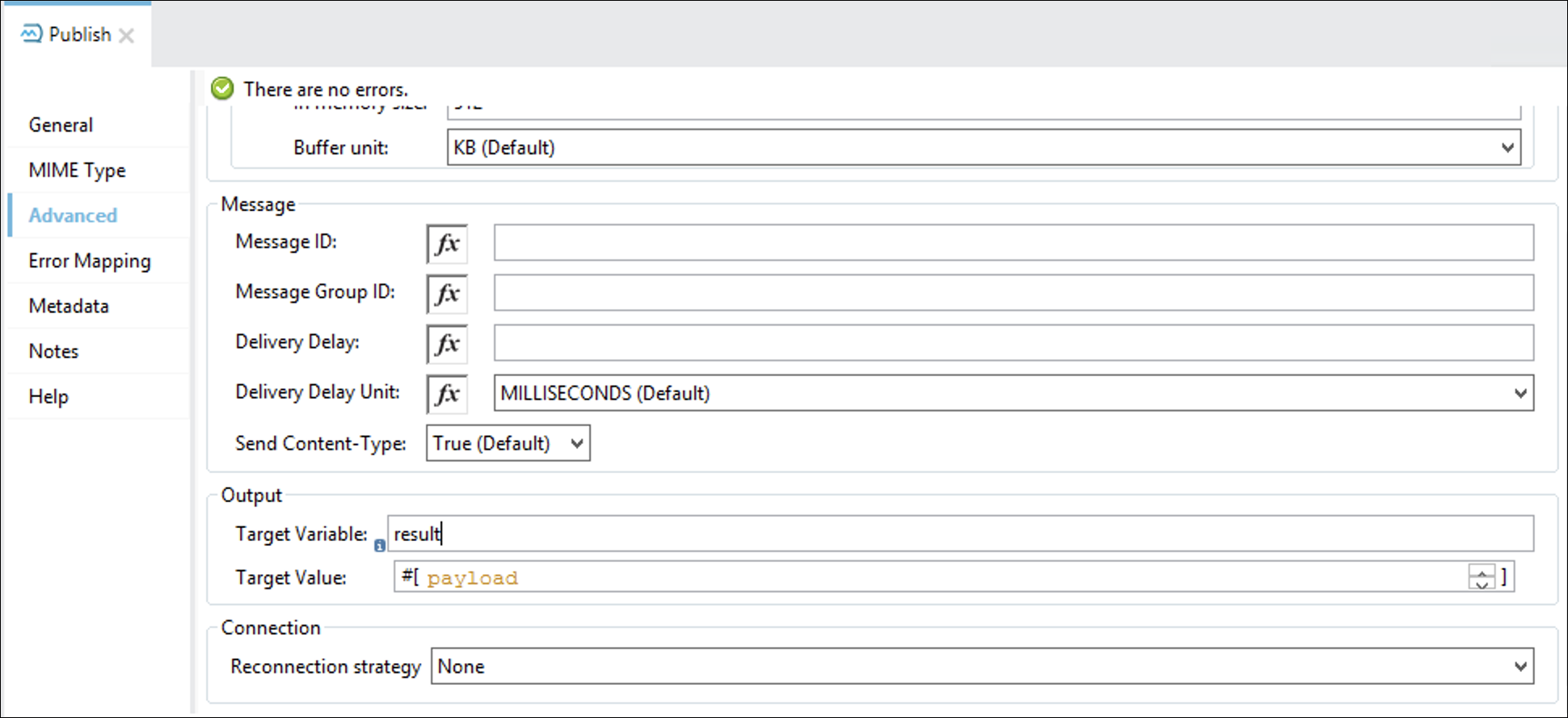
Finally, we are going to generate the response
-
-
Add a Transform component after the publish component.
-
Complete the transform with the following dataweave script:
%dw 2.0
output application/json
---
{
	order_id: vars.order_id as Number,
	username: payload."1".payload.name
}
That completes all the necessary steps to publish a Notification message to Anypoint MQ. Your final flow should resemble this:
The next step will be the creation of two new flows that will subscribe to our Queues and trigger Notification events on both Twitter and Slack channels.
Step 3: Construct new Flows for Slack and Twitter Notification subscribers
In order to subscribe to Notification events that our Order Fulfillment flow will publish we’ll create two new flows within our Mule project to represent the Slack Notification channel, as well as Gmail/Twitter channel.
Each flow will send a copy of the same Notification message from our Process API, these Notification flows will consume the message and invoke the configured social endpoints that are part of the pre-built Notification (System) API.
-
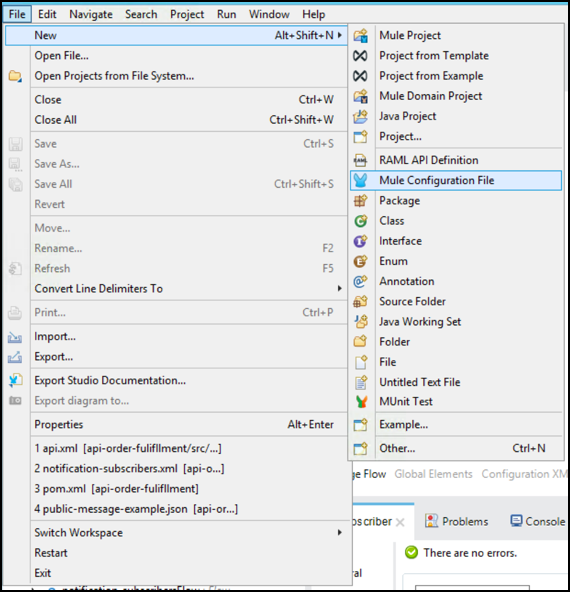
Create a new Mule Configuration file to encapsulate our Notification flows.
-
Name the new configuration file notification_subscribers.xml
-
Drag a Subscriber Anypoint MQ component on the blank canvas to begin the construction of our first flow aimed at the Gmail/Twitter channel
-
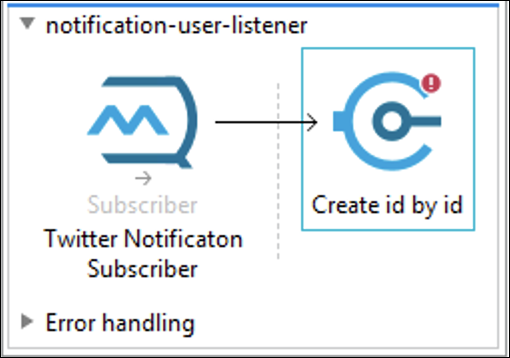
Rename the Flow name to notification-user-listener
-
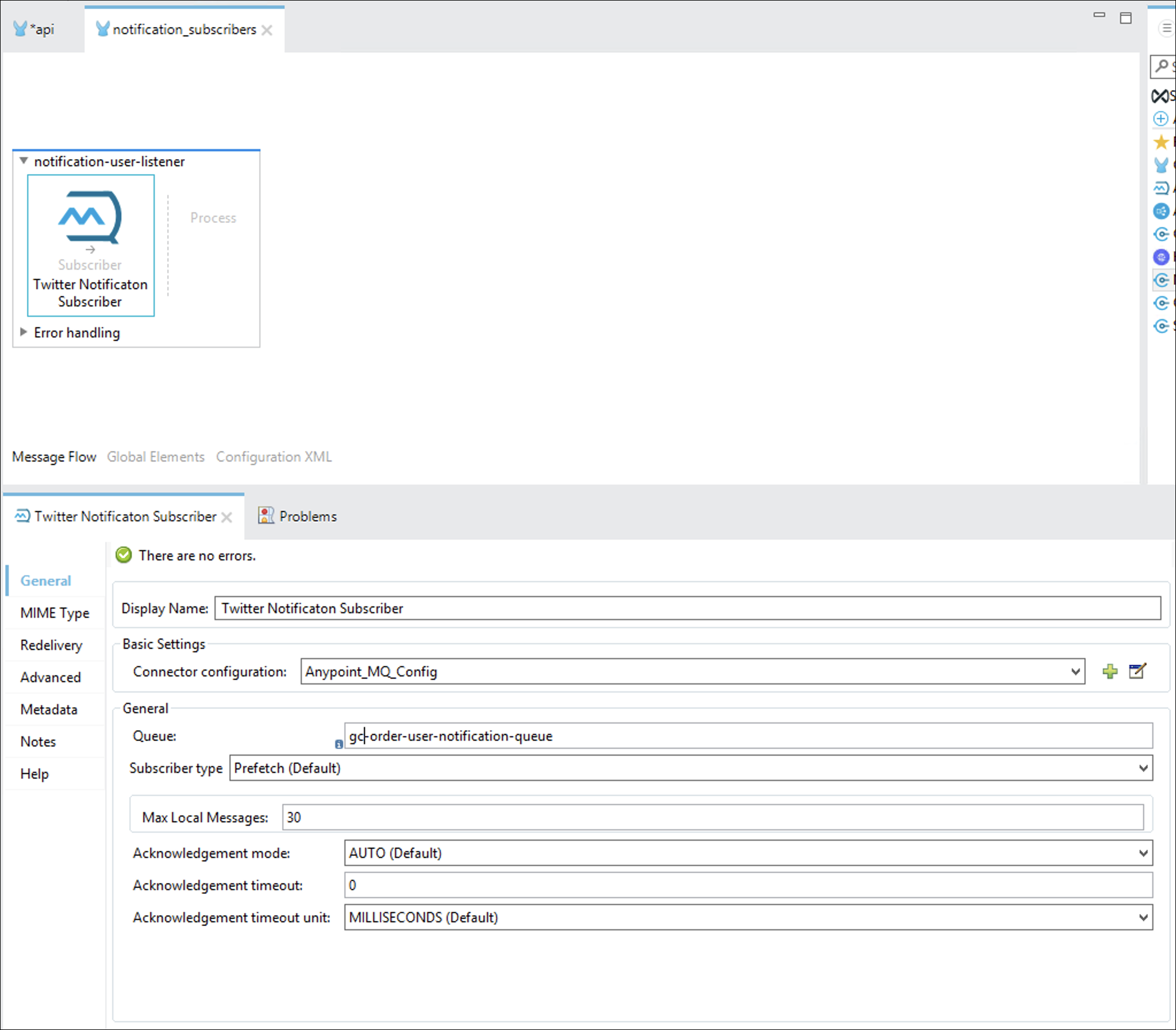
Rename the component to Twitter Notificaton Subscriber .
-
Reuse the Anypoint MQ Connector Configuration object.
-
Configure the Destination to in the Queue field under General section <username>-order-user-notification-queue.
Your configuration should resemble something similar to the below:
-
Press the save button.
We are going to define the Message that we are going to receive. Remember that is the same message we are publishing.
-
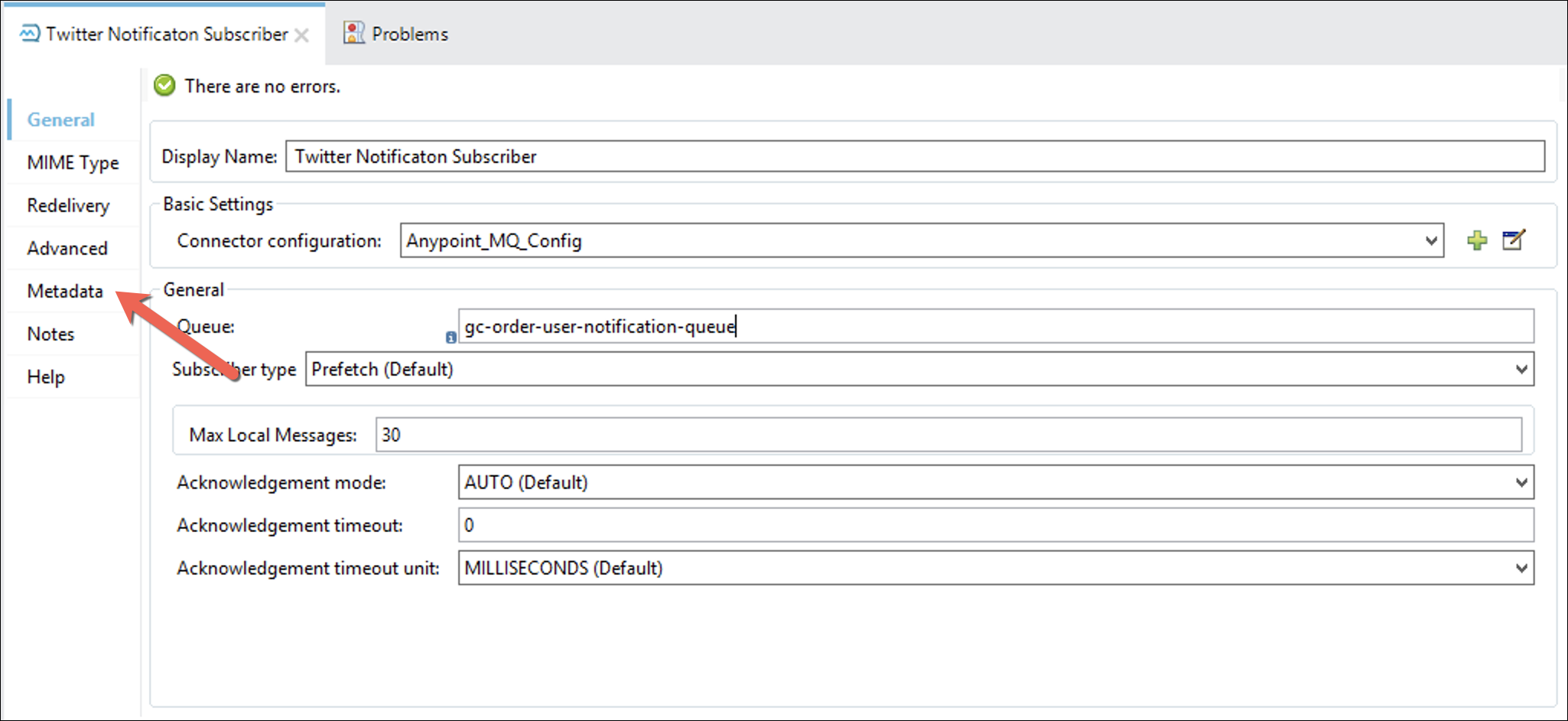
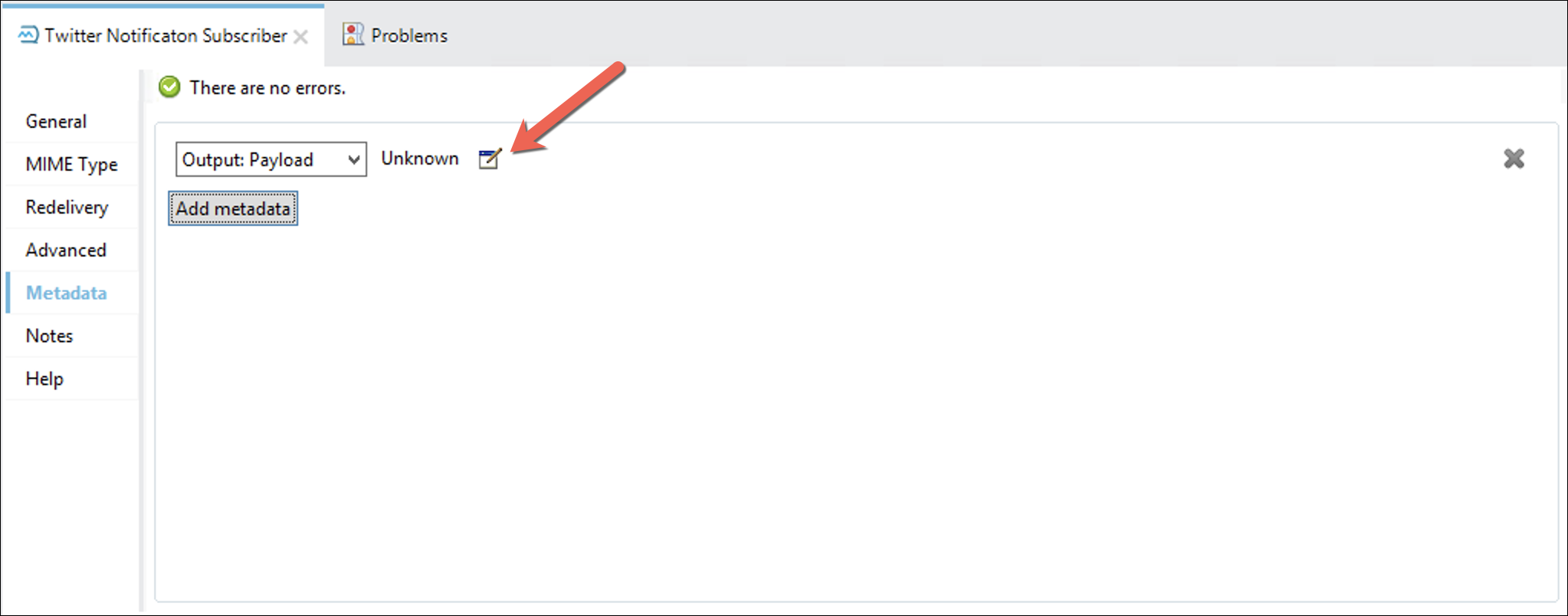
Go to the Metadata tab
-
Press Add metadata button
-
Select Output: Payload and press the edit button
-
Select metadata publish_message_example and press Select
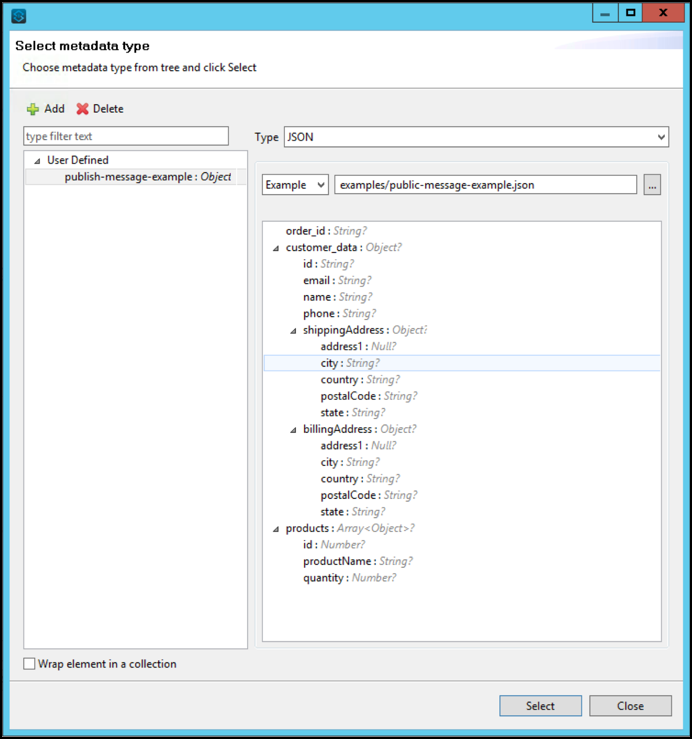
Now that we set the metadata for that component. Is going to be easier for Anypoint Studio to manage the datasense.
We said that we were going to consume the Notifications API. So we need to add that connector.
-
Go to Search in Exchange and search for Notification API
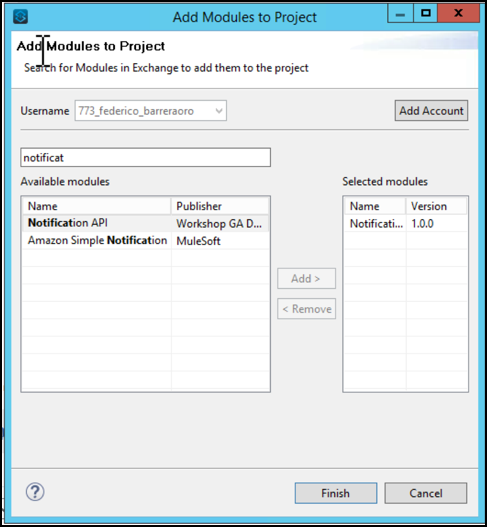
After Pressing Finish, the Notification API module will be ready to be used in the palette.
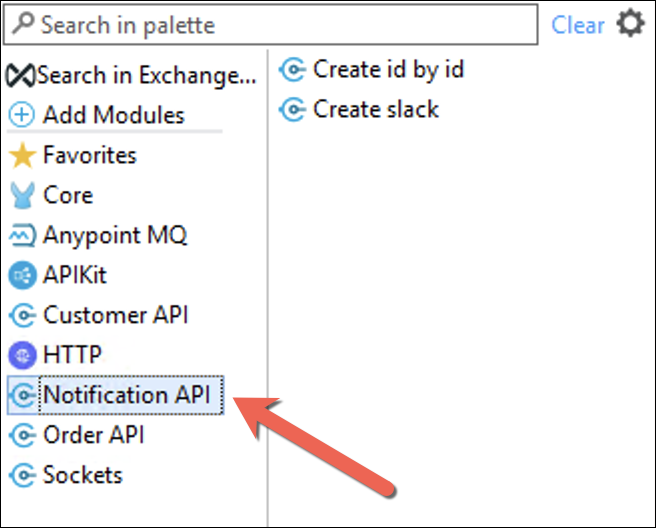
The connector version can change. Be sure that is the last version.
-
Drag and Drop Create id by id resource.
-
Double-click on the connector to display its properties. You should see the component properties for you to configure in the Mule Properties View.
-
Click on
 icon to create a new configuration as shown:
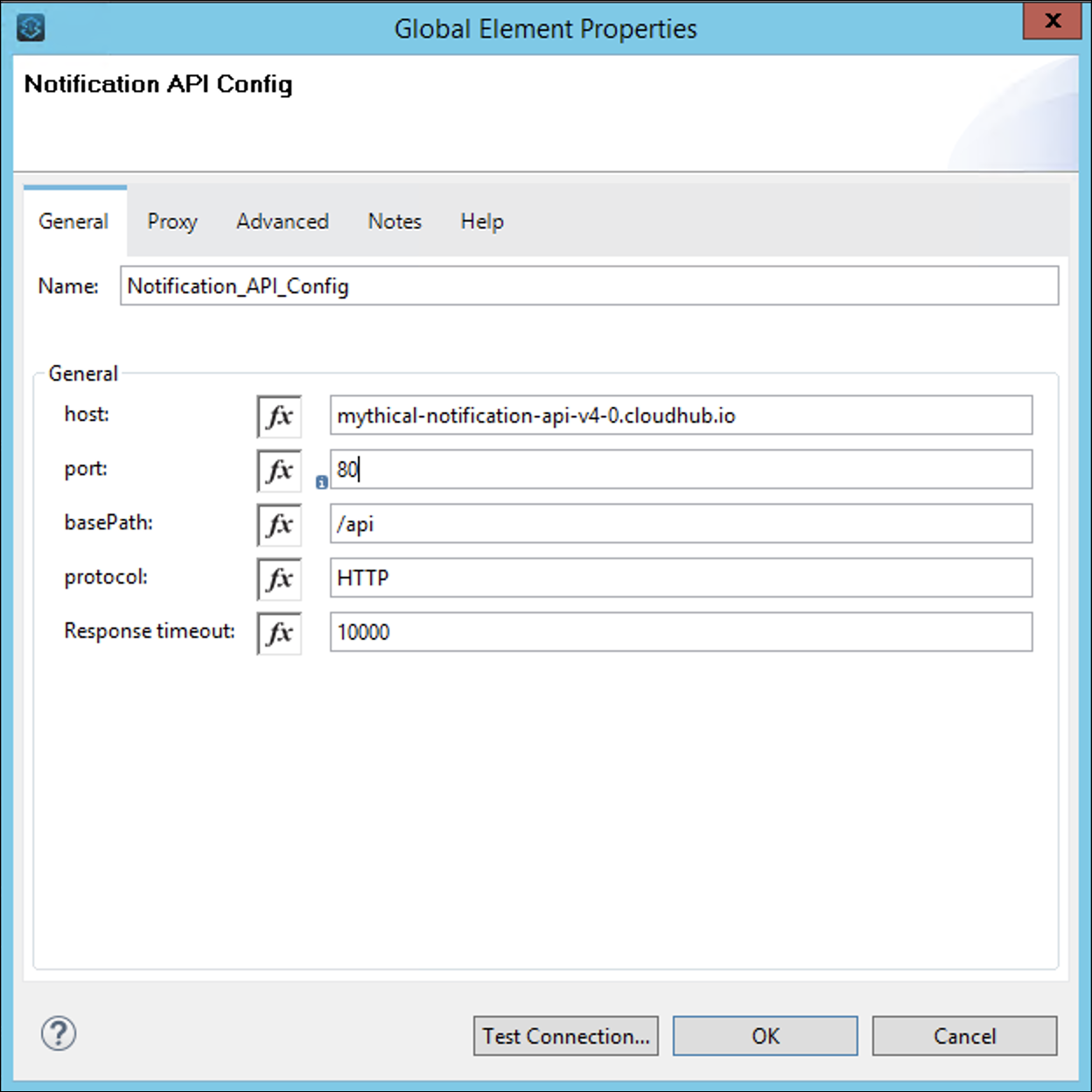
-
Complete the Request Configuration
-
Host:
mythical-notification-api-v4-0.cloudhub.io -
Port:
80 -
Base Path:
/api -
Protocol:
HTTPHere we are hardcoding the values, Notice the Host value can be configured in the configuration.yaml file So we can change the value to ${system.api.host.notification}
-
-
Click OK
-
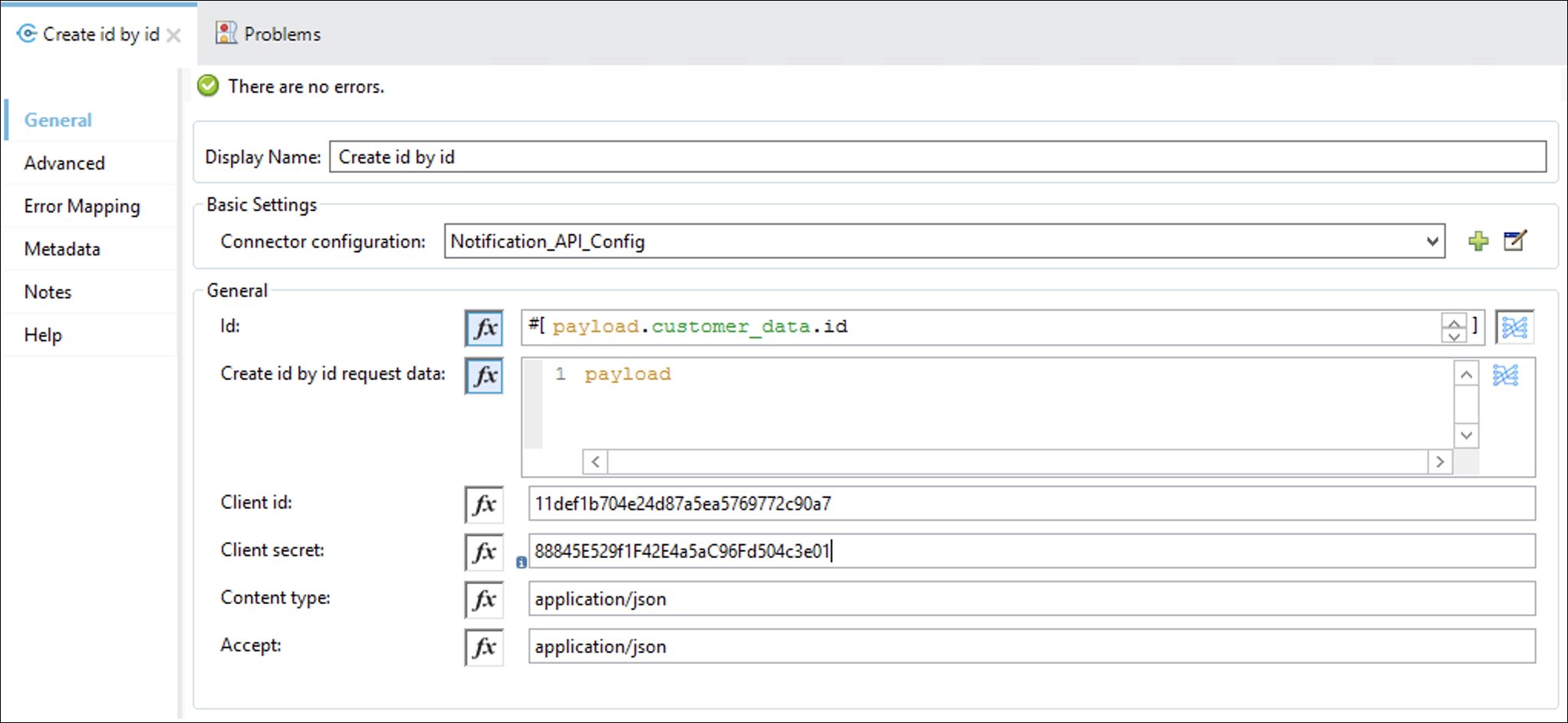
In the General section, set the following parameters:
-
Id:
#[payload.customer_data.id] -
Create id by id request data:
#[payload] -
Client id:
11def1b704e24d87a5ea5769772c90a7 -
Client secret:
88845E529f1F42E4a5aC96Fd504c3e01 -
Content type:
application/json -
Accept:
application/jsonThe configuration should look similar to this:
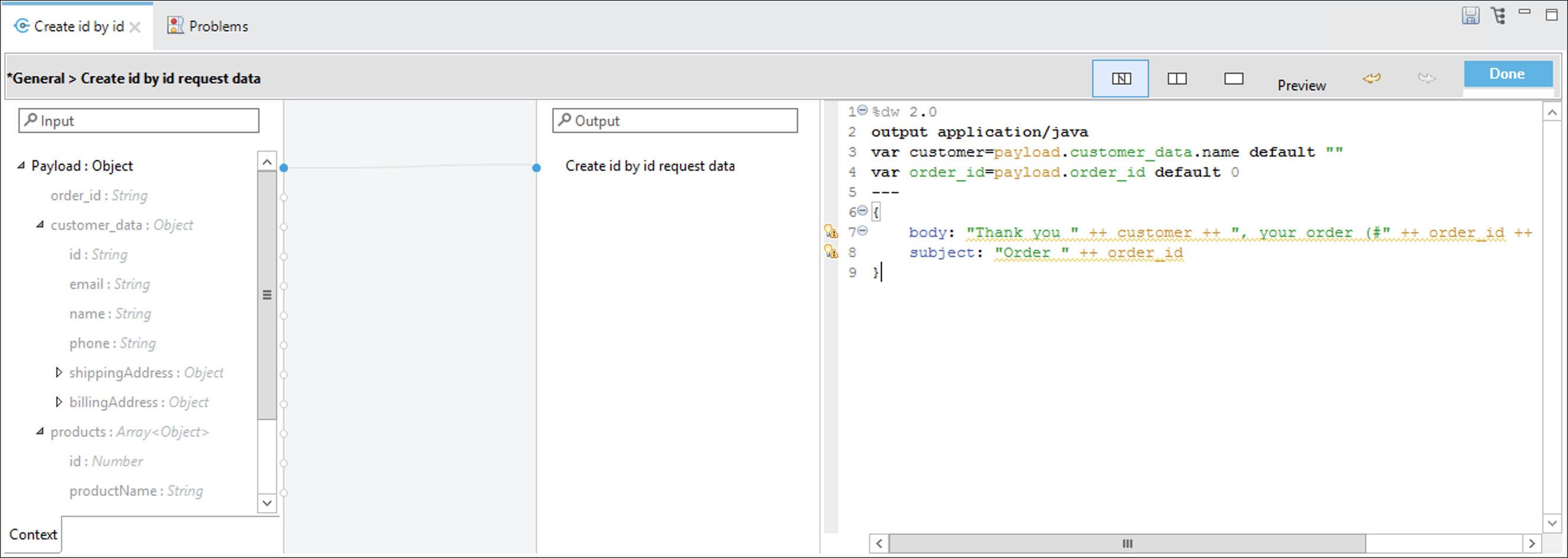
Let’s complete the request data.
-
-
Press
and add the below DataWeave logic into the code editor:%dw 2.0 output application/java var customer=payload.customer_data.name default "" var order_id=payload.order_id default 0 --- { body: "Thank you " ++ customer ++ ", your order (#" ++ order_id ++ ") has been received.", subject: "Order " ++ order_id }You should see something similar to this:
-
Finally add a Logger component. This will output an intuitive log entry indicating that the Notification was sent.
-
In the Message put the following string:
Notification to Twitter successfully Sent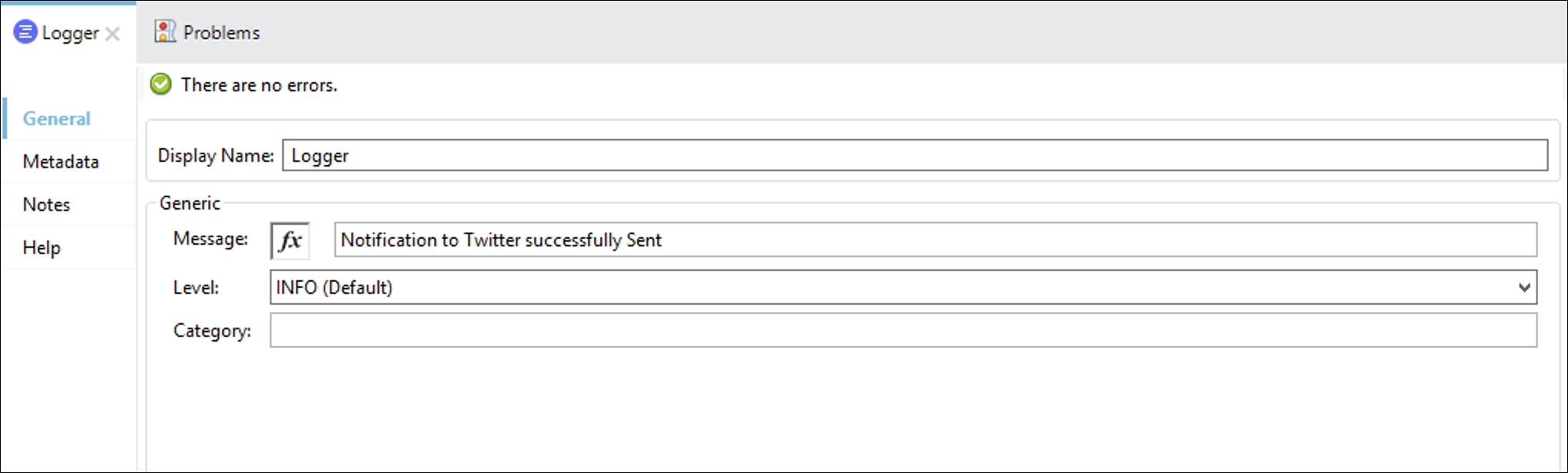
The Flow should look similar to this
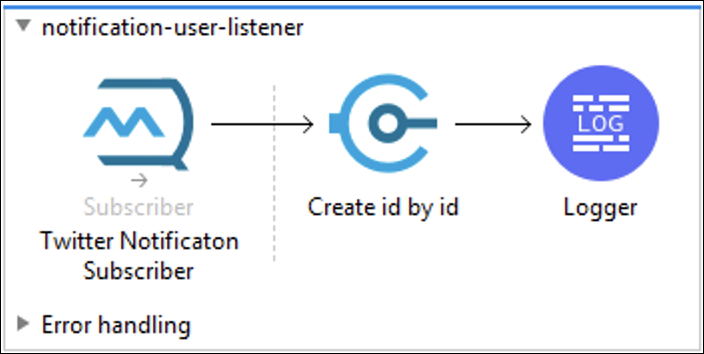
-
Save your flow configuration.
The next flow that we’ll configure for this step will be our Slack Notification Flow.
-
Drag another Subscriber Anypoint MQ component onto the canvas. This will create a new flow.
-
Rename the name of the flow to
notification-slack-listener -
Rename the component to Slack Notificaton Subscriber .
-
Reuse the Anypoint MQ Connector Configuration object.
-
Configure the Destination to <username>-order-slack-notification-queue.
-
Your configuration should resemble something similar to the below image:
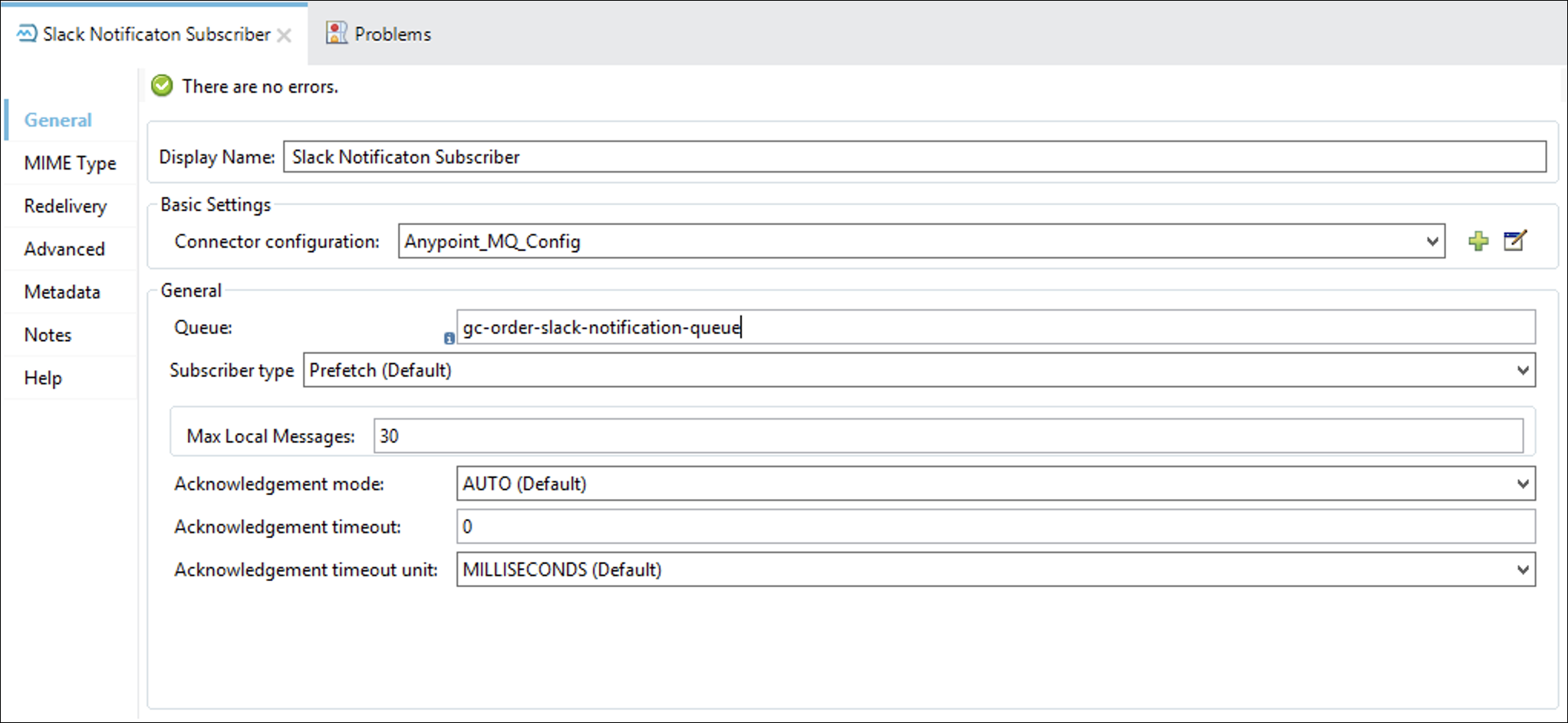
-
Go to the Metadata tab
-
Press Add metadata button
-
Select Output: Payload and press the edit button
-
Select metadata publish_message_example and press Select
Again we are setting the output metadata so is going to be easier for Anypoint Studio to manage the datasense.
-
Add the component Create slack from the Notification API connector
-
Reuse the Connector configuration already created.
-
In the General section, set the following parameters:
-
Name: Expression Value
-
Create slack request data: #[payload]
-
Client id:
11def1b704e24d87a5ea5769772c90a7 -
Client secret:
88845E529f1F42E4a5aC96Fd504c3e01 -
Content type:
application/json -
Accept:
application/jsonThe configuration should look something like this:
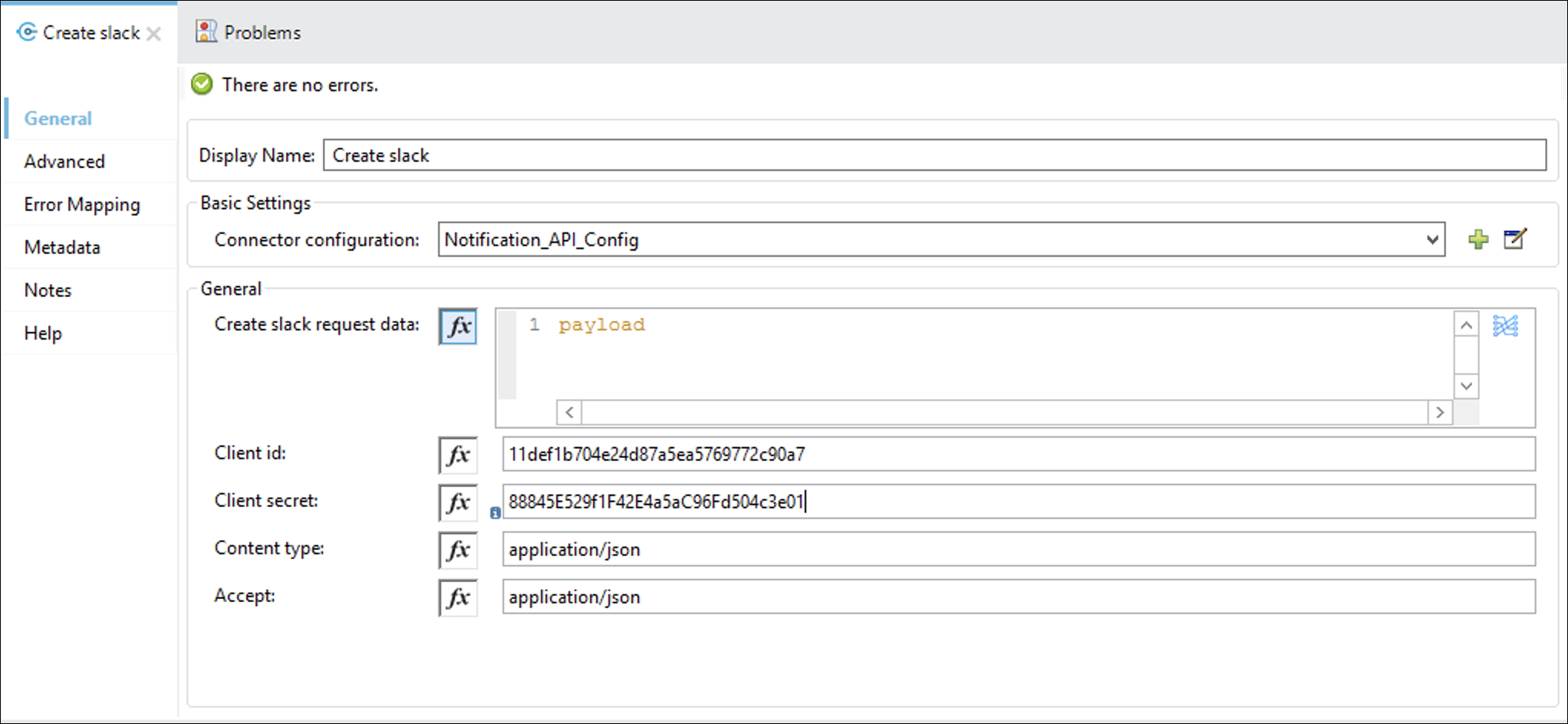
Let’s complete the request data.
-
-
Press
and add the below DataWeave logic into the code editor:%dw 2.0 output application/json --- { userId: payload.customer_data.id, productList: payload.products map ( product , indexOfProduct ) -> { qty: product.quantity, name: product.productName } }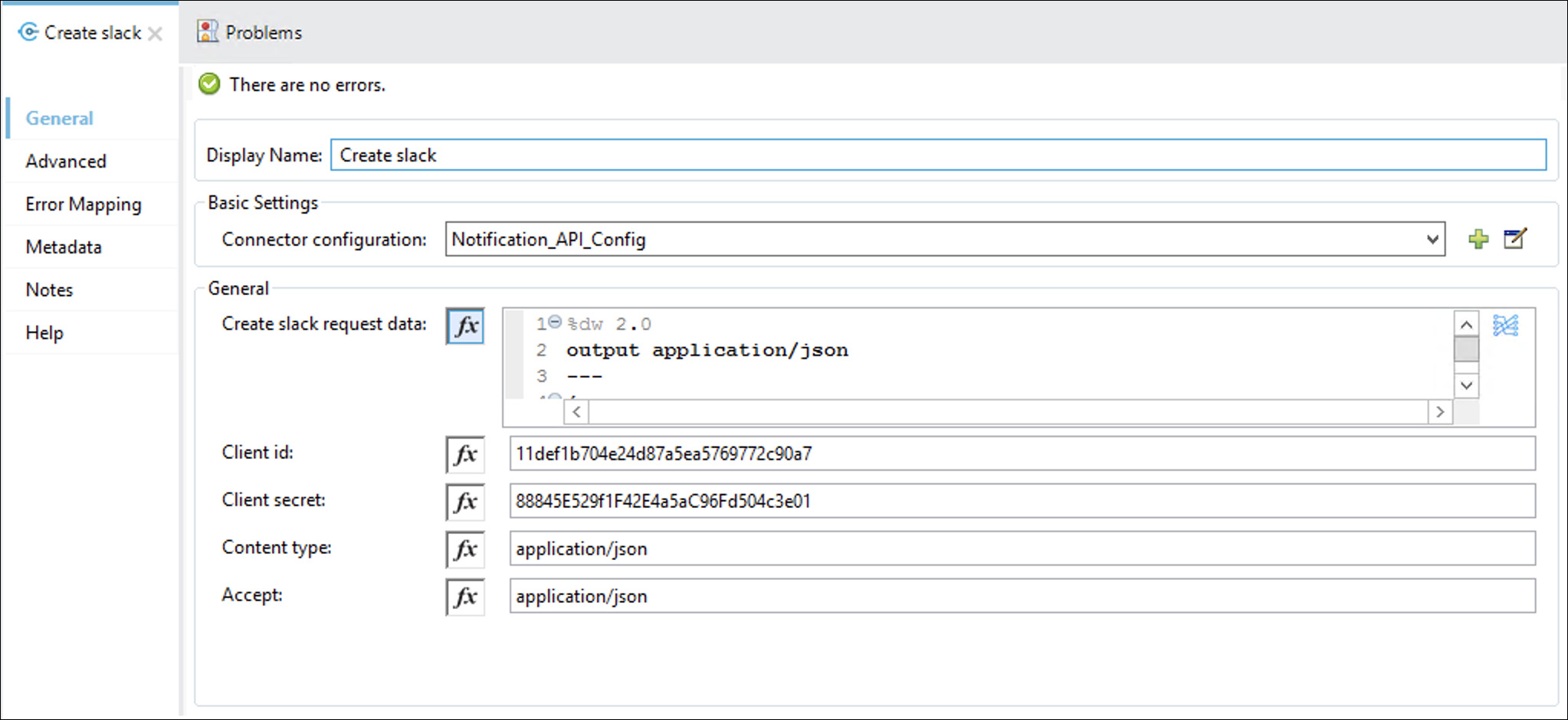
Press the
 button.
 -
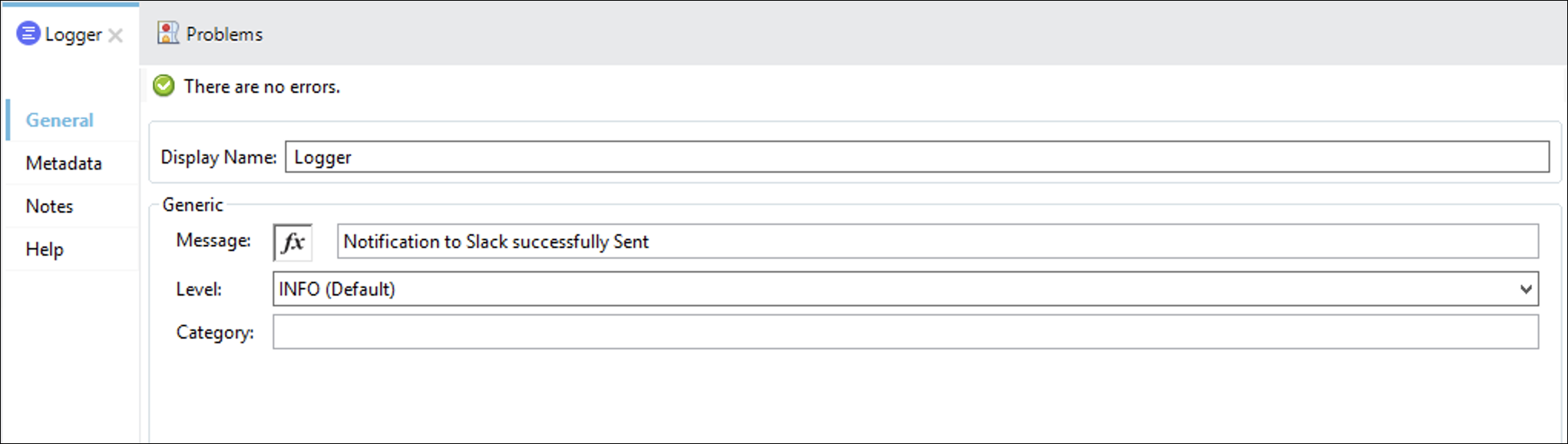
Finally add a Logger component. This will output an intuitive log entry indicating that the Notification was sent.
-
In the Message put the following string:
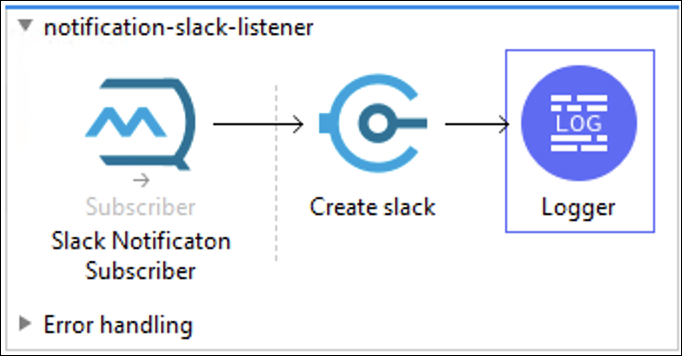
Notification to Slack Successfully SentYour logger configuration and final flow should reflect the below illustration:
The Flow should look similar to this
-
Save your flow configuration.
Step 4: Run Process API to simulate Order Fulfillment and Anypoint MQ Notifications
Now it’s time to run the API in Anypoint Studio to see how it all works together.
-
Start the application as done in the previous Lab. (Right-click the application, RUN AS > Mule Application
-
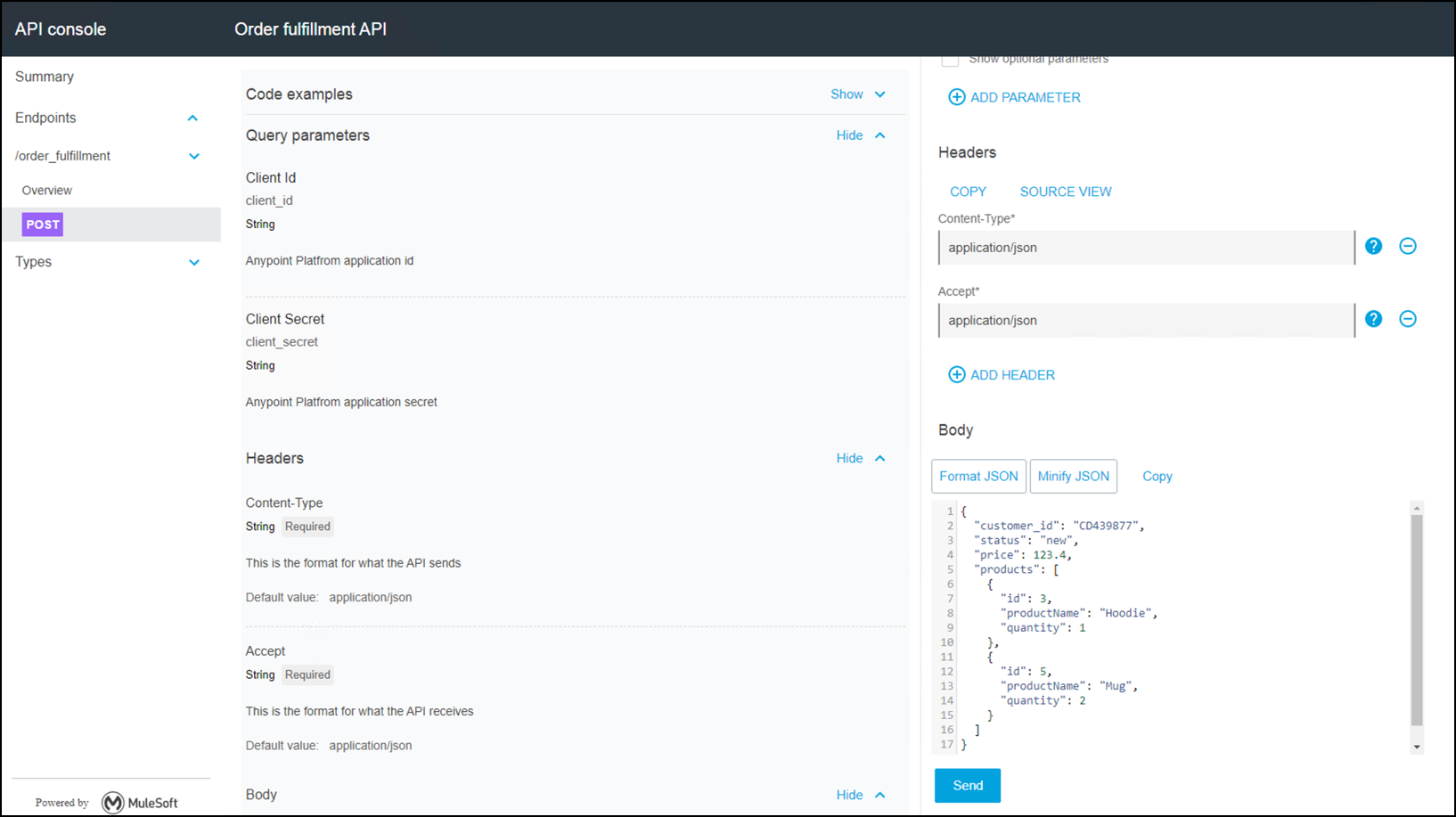
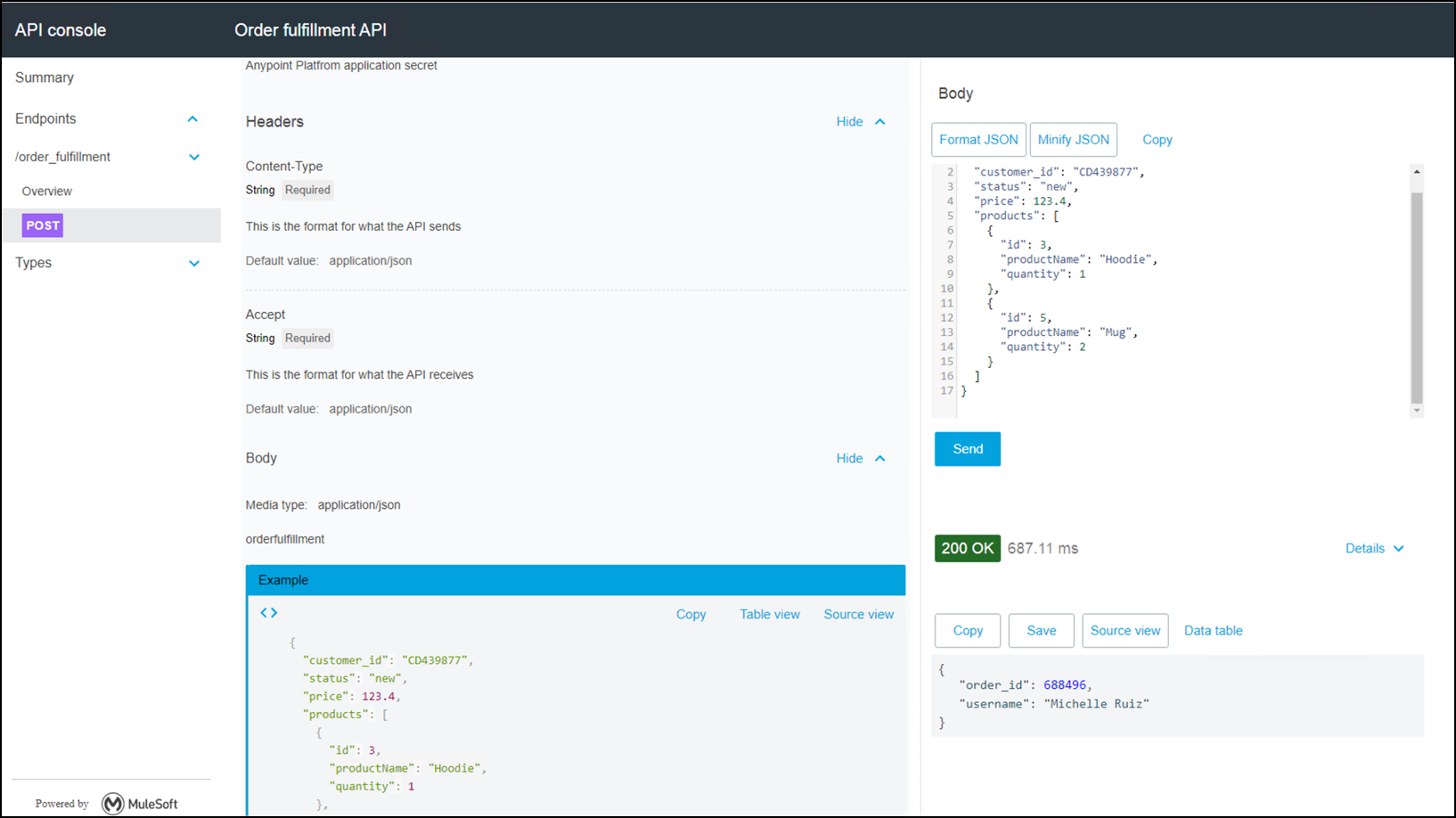
Once the API Console View opens in Anypoint Studio, click on the POST button on the /orders_fulfillment resource.
-
Complete the Accept field with
application/json. -
View the request body then click on the SEND button below.
-
Once the request is served, you should see a 200 response code and the JSON response of our API.
-
Review GMail, Twitter and/or Slack channels with the Instructor to view the broadcasted Notification message.
You can download a complete project from exchange.
Summary
In this module you completed the following steps:
-
Using Anypoint Studio, implemented the Order Fulfillment Stub to complete the Process API layer.
-
Configured the Scatter-Gather flow control and RAML Consumer objects to orchestrate Order and Customer System APIs.
-
Using DataWeave, managed System and API responses to produce desired result set.
-
Tested the Process API implementation that traverses the System API layer using live API calls from RAML Consumers.
For further reading on components that we used in this lab, please refer to the following documentation:
-
See the link Rest Connectors doc for more information
-
See the link Scatter-Gather doc for more information
-
See the link Anypoint MQ doc for more information
Congratulations! You have completed lab 3, the final of this Module.